Prerequisites
Before configuring your Oracle AI Database@AWS environment, you need to understand the prerequisites for your chosen encryption method.
Oracle AI Database@AWS provides two main approaches for Transparent Data Encryption (TDE):
-
Oracle-managed Key (OMK)
- Oracle Wallet
-
Customer-managed Key (CMK)
-
OCI Vault
-
Oracle Key Vault (OKV)
-
AWS Key Management Service (KMS)
-
This section explains the required prerequisites to configure your Oracle AI Database@AWS.
Oracle-managed keys are the default method for securing data encryption in Oracle AI Database@AWS. In Oracle AI Database, data encryption at rest is managed by Transparent Data Encryption. When you use Oracle-managed keys, the database system automatically handles all key management tasks, including key generation, secure storage, and rotation required by TDE. There are no prerequisites or additional configuration steps required to use Oracle-managed keys with Oracle AI Database@AWS.
Prerequisites to Use Customer-Managed Keys on Oracle AI Database@AWS with OCI Vault
Using customer-managed encryption keys on Oracle AI Database@AWS with Oracle Cloud Infrastructure Vault (OCI Vault) involves creating a master key in OCI Vault and configuring your Oracle Cloud Infrastructure Vault database to use encryption keys in OCI Vault.
Complete the following prerequisites:
-
Create an OCI Vault
-
From the OCI Console, select Identity and Security. Under Key Management, select Vault.
-
Select the Create Vault button.
-
Select a compartment.
-
Enter a name for the vault.
-
Enable the Make it a virtual private vault toggle to create a dedicated partition in a hardware security module (HSM), if required.
Note
Note: You cannot change the vault type after you create the vault. -
The Tags section is optional.
-
Select the Create Vault button.
-
Note
Note: We recommend creating the vault in a compartment dedicated to customer-managed keys, as described in Before You Begin: Compartment Hierarchy Best Practice. For more information, see Creating a Vault.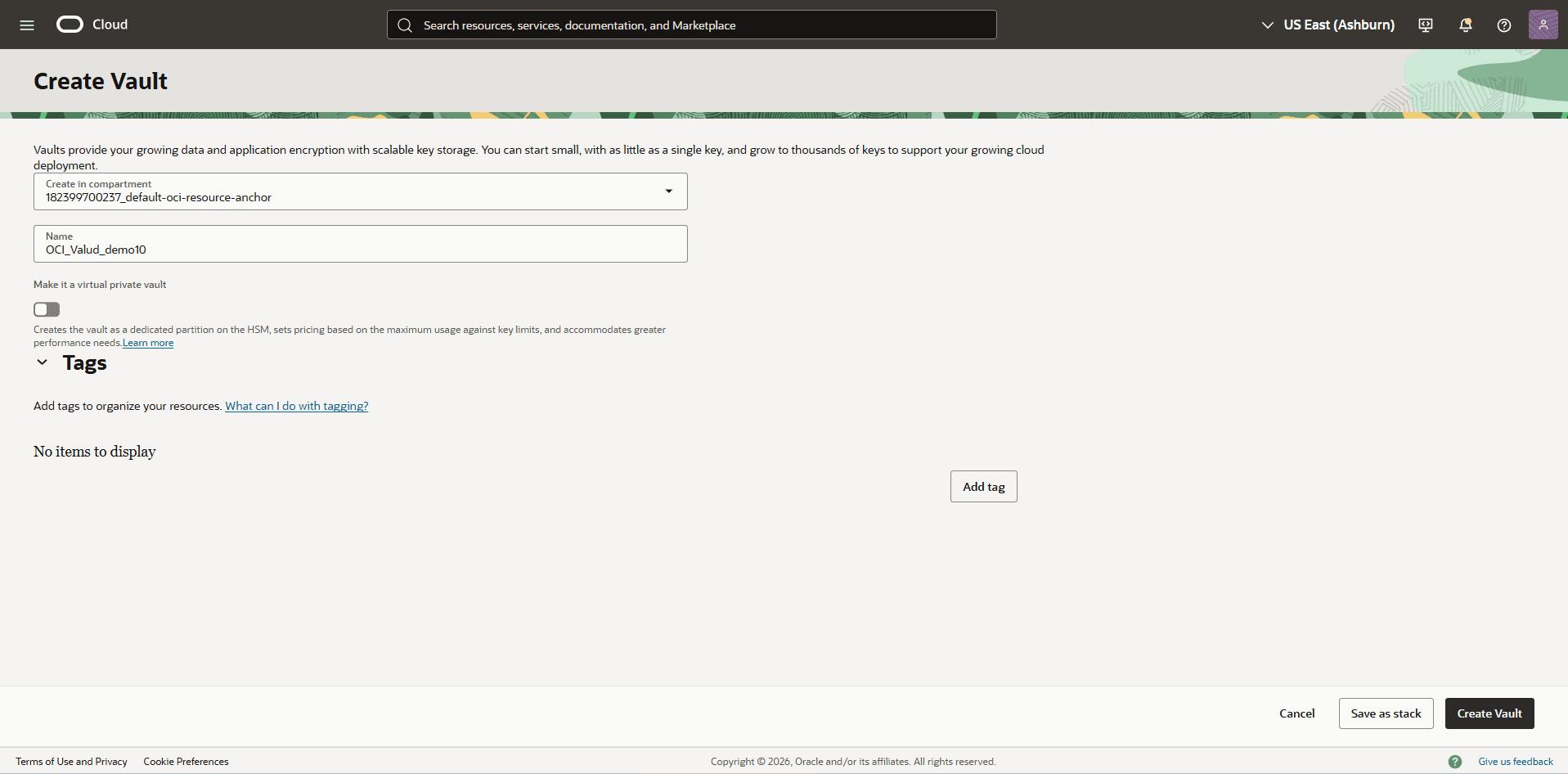
-
-
Create a Master Encryption Key in the Vault
- Note
-
From the Vault menu, select the vault that you created previously.
-
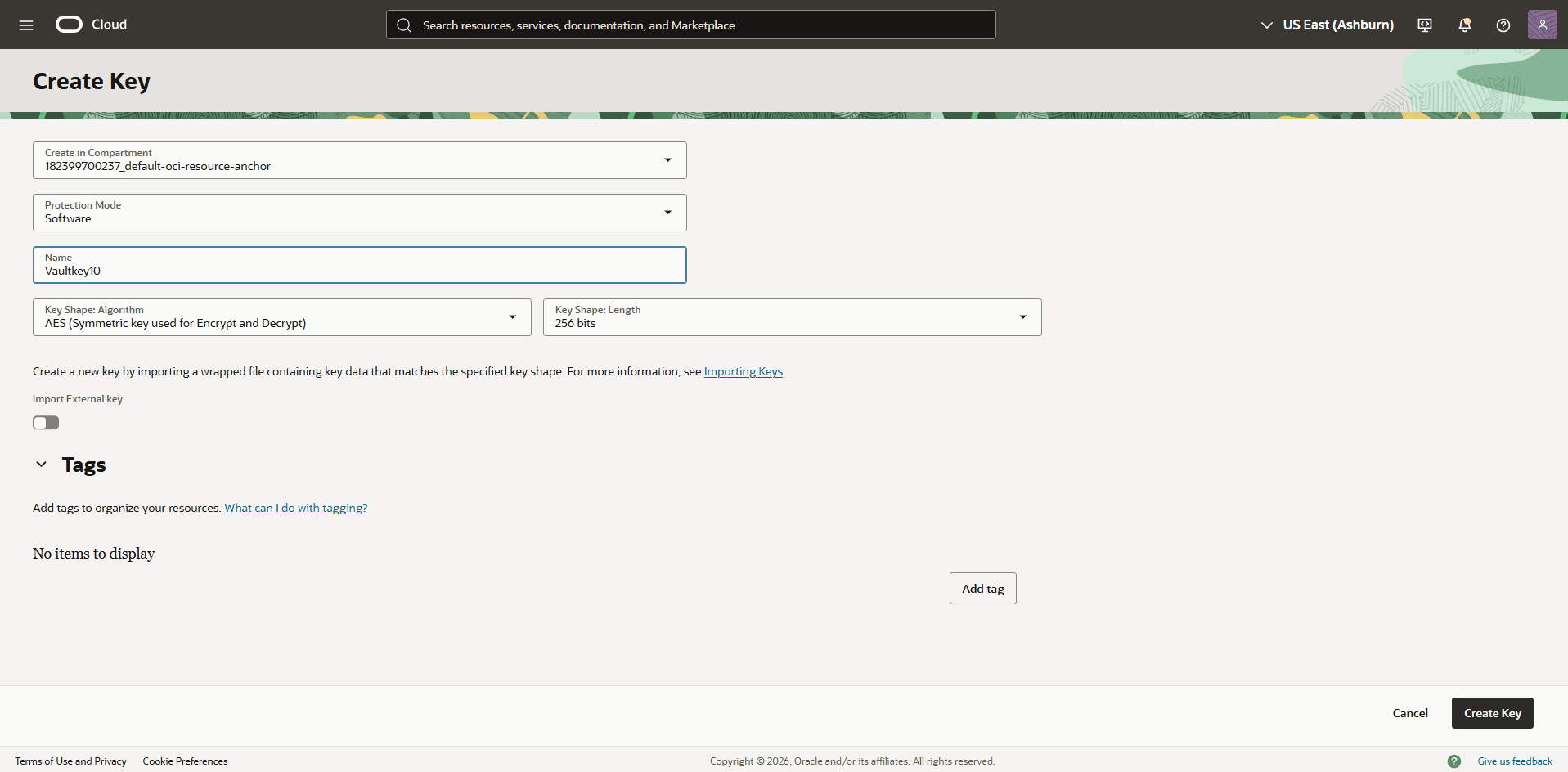
Select the Master Encryption Keys tab, then select the Create Key button.
-
Choose a compartment.
-
Select the protection mode from the dropdown list:
-
HSM: Creates a master encryption key that is stored and processed on an HSM.
-
Software: Creates a master encryption key that is stored in a software file system in the Vault service. Software-protected keys are protected at rest using an HSM-based root key. You can export software keys to other key management devices or to a different OCI region. Software-protected keys do not incur cost.
-
-
Enter a key name.
-
From the Key Shape: Algorithm dropdown list, select AES (Symmetric key used for Encrypt and Decrypt).
-
From the Key Shape: Length dropdown list, select 256 bits. Note: We recommend creating a separate master encryption key for each container database (CDB). This approach simplifies key rotation management. For more information, see Creating a Master Encryption Key and Overview of Key Management..
-
-
-
Configure a Service Gateway, Route Rule, and Egress Security Rule
To enable communication between OCI Vault and Oracle AI Database@AWS, configure a Service Gateway, update the Route table(s), and configure the required security list permissions.
-
From the OCI Console, navigate to the Virtual Cloud Network (VCN) associated with your Oracle AI Database@AWS database.
-
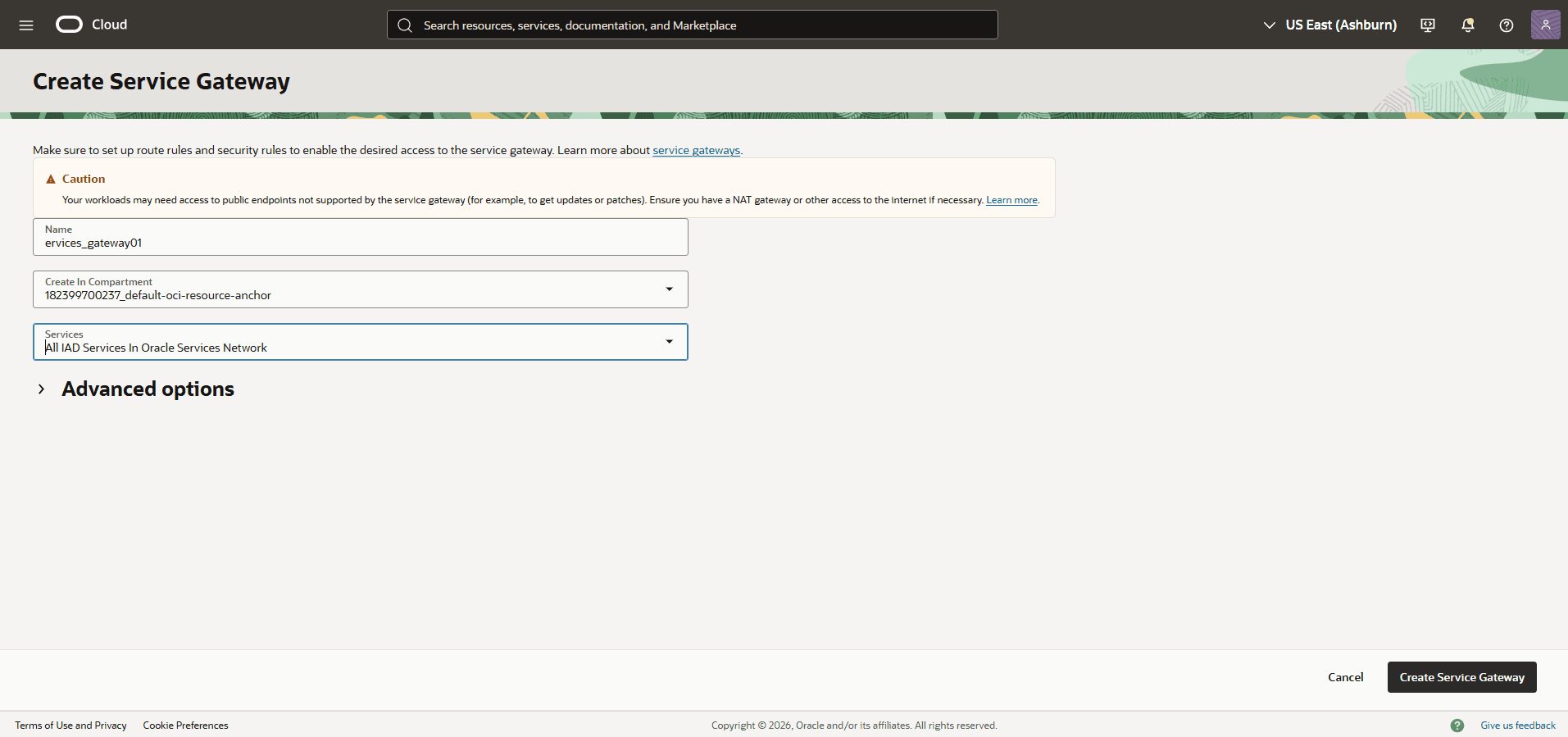
Select the Gateways tab. In the Service Gateways section, select the Create Service Gateway button.
-
Enter a descriptive name for the service gateway.
-
For Services, select the All IAD Services in Oracle Services Network option.
-
Review your information, and then select the Create Service Gateway to create your service gateway.
-
-
Select the Routing tab, then select your default route table.
-
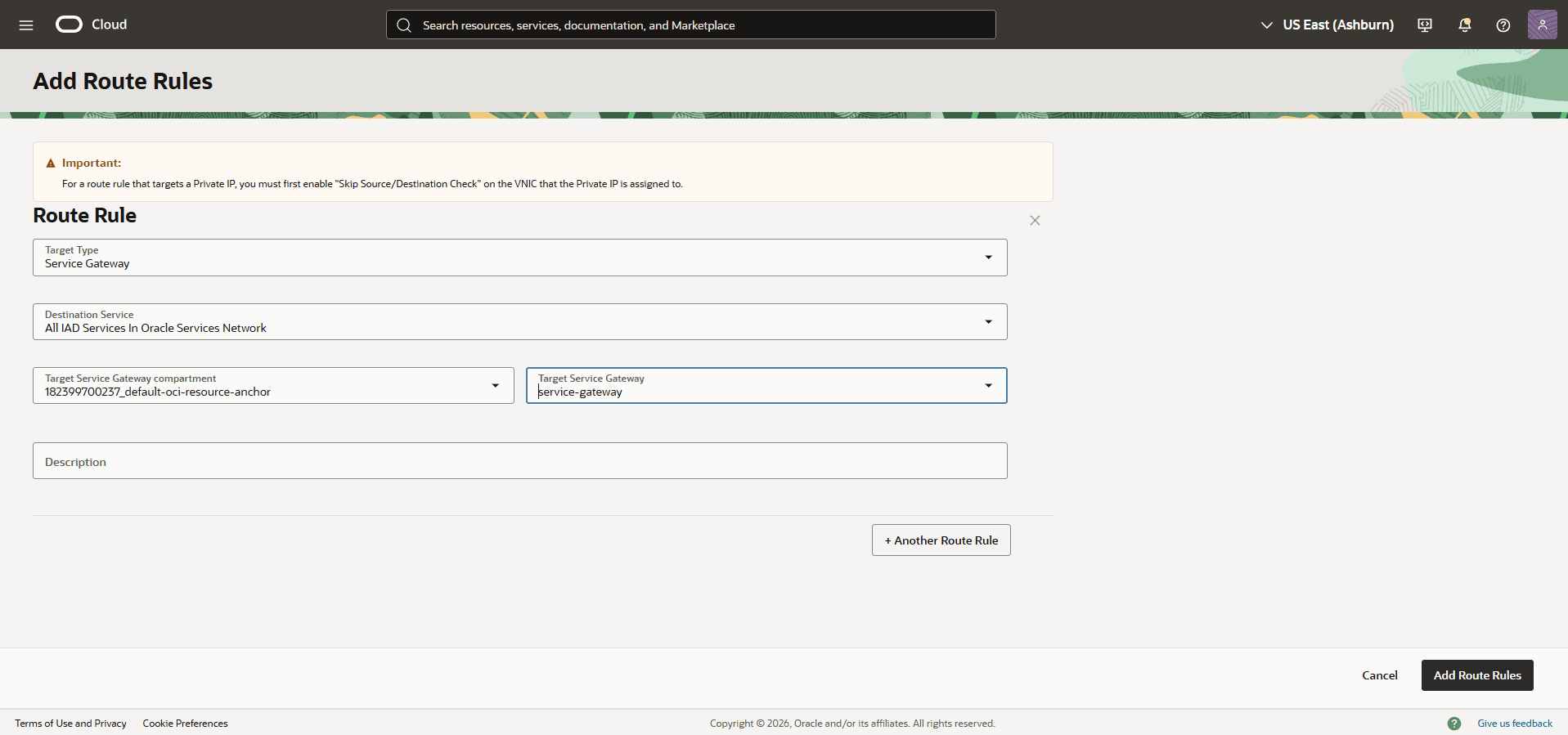
Select the Route Rules tab, then select the Add Route Rules button.
-
Set Target Type to Service Gateway.
-
Set Destination Service to All IAD Services in Oracle Services Network.
-
In the Target Service Gateway compartment field, select the compartment that contains the service gateway.
-
In the Target Service Gateway field, select the service gateway that you created previously.
-
Review your information, and then select the Add Route Rules button.
-
-
From the Virtual Cloud Network (VCN) that is associated with your Oracle AI Database@AWS database, select the Security tab.
-
In the Security List section, select the default security list.
-
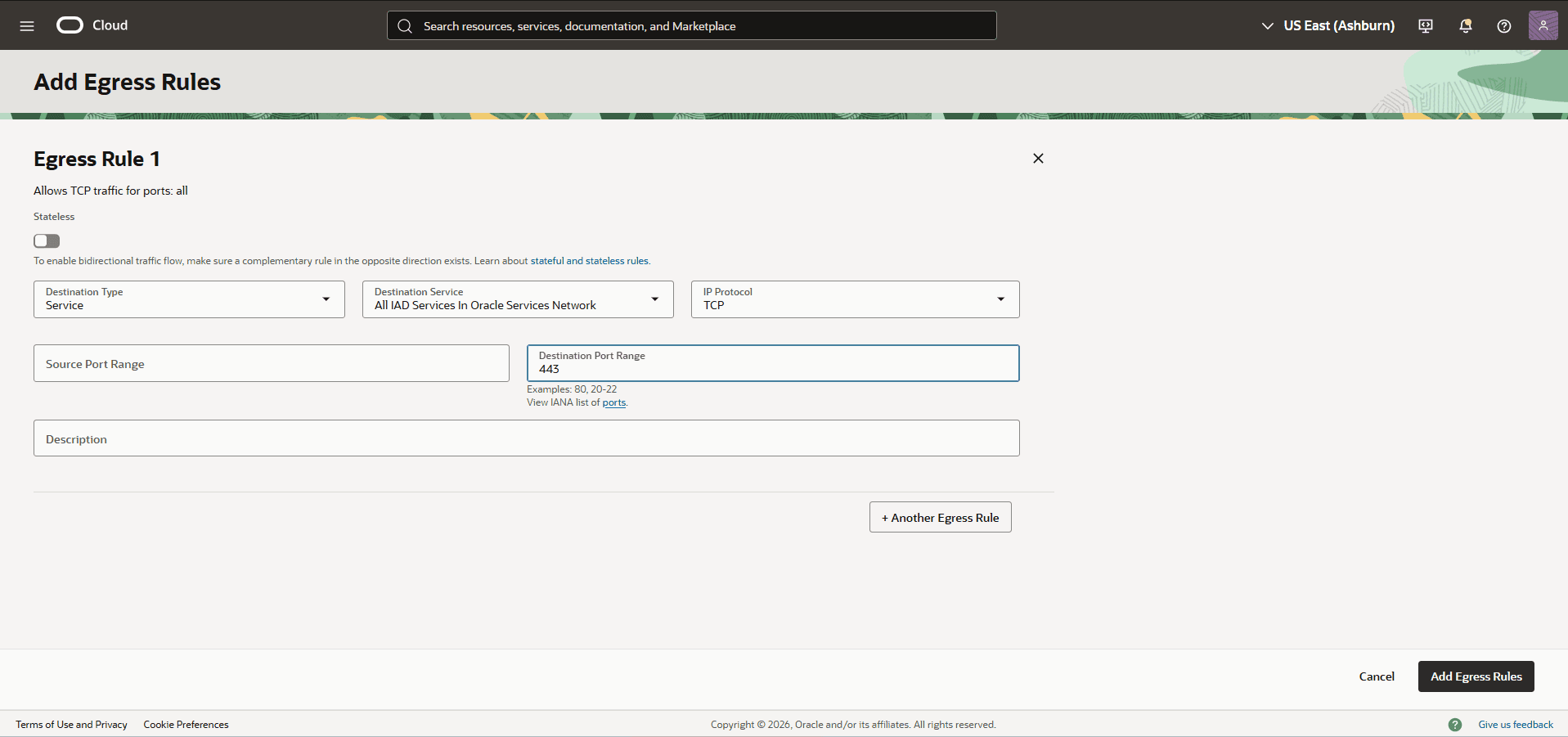
Select the Security Rules tab, then select the Add Egress Rules button.
-
Set Stateless to No.
-
Set Destination Type to Service.
-
Set Destination Service to All IAD Services in Oracle Services Network.
-
Set IP Protocol to TCP.
-
Set Source Port Range to All.
-
Set Destination Port Range to 443.
-
Select the Add Egress Rules button.
-
-
-
There is currently no content for this page. The Oracle AI Database@AWS team intends to add content here, and this placeholder text is provided until that text is added.
The Oracle AI Database@AWS team is excited about future new features, enhancements, and fixes to this product and this accompanying documentation. We strongly recommend you watch this page for those updates.
Key Pool on Oracle AI Database@AWS
AWS Key Pool is an OCI-managed resource that stores metadata and an external reference for AWS KMS keys. It allows you to assign separate key material to container databases (CDBs) and pluggable databases (PDBs). When a database uses or requests a key, the driver requests an available key from the pool. This process allows each CDB or PDB to use different key material. Key reuse policies enable you to use one key for multiple databases and help limit the number of keys in a key pool.
Note
Note:
-
Update the PKCS#11 Driver to the latest version before using the Key Pool functionality. See Release Notes for the latest version.
-
To update the driver, see Updating the Multicloud PKCS#11 Driver.
Create a Key Pool
- From the OCI Console, navigate to Oracle AI Database and then select Database Multicloud Integrations.
- From the left menu, select AWS Integration, and then Key Pools.
- Select Create key pool.
- On the Create key pool page, configure the following:
- Select the Compartment.
- Enter a descriptive name. The display name can contain only alphanumeric characters, hyphens (
-), and underscores (_). - Allow key reuse is enabled by default. Enable key reuse to allow multiple databases to use the same key from the pool. When you disable key reuse, only one database can use each key.
-
Multi-region key pool is not enabled by default. Enable this option to allow only AWS multi-Region keys in the pool. When you disable it, you can add only AWS single-region keys.
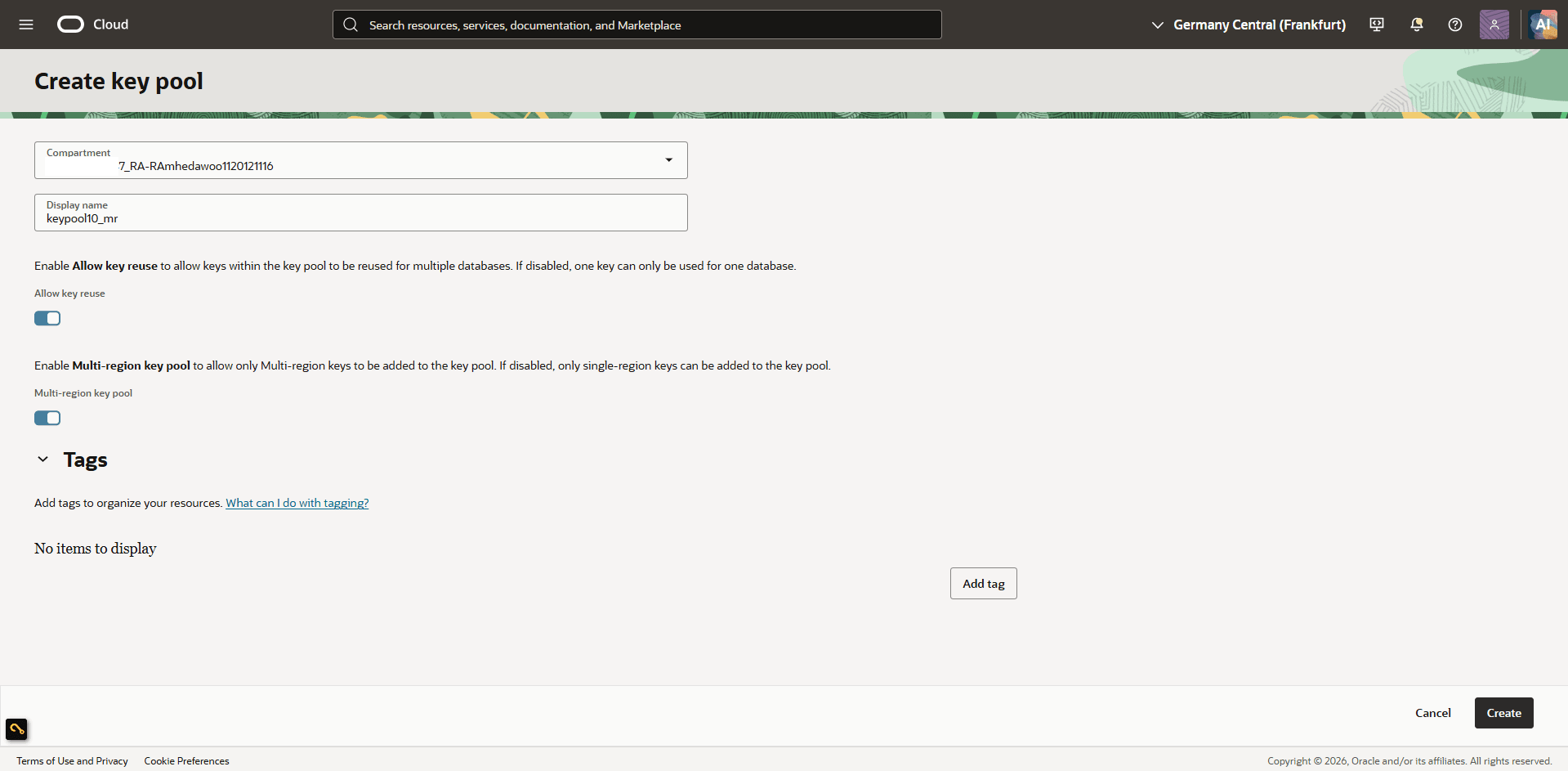
Description of the illustration awssc_prereqs_aws_kms_01.png
Note
Note: If you plan to configure Oracle Data Guard across regions, select Multi-region key pool during initial setup. You cannot change a key pool from single-region to multi-region or vice versa after it has been created.
- Optionally, in the Tags section, select Add tag to add a tag to the resource.
-
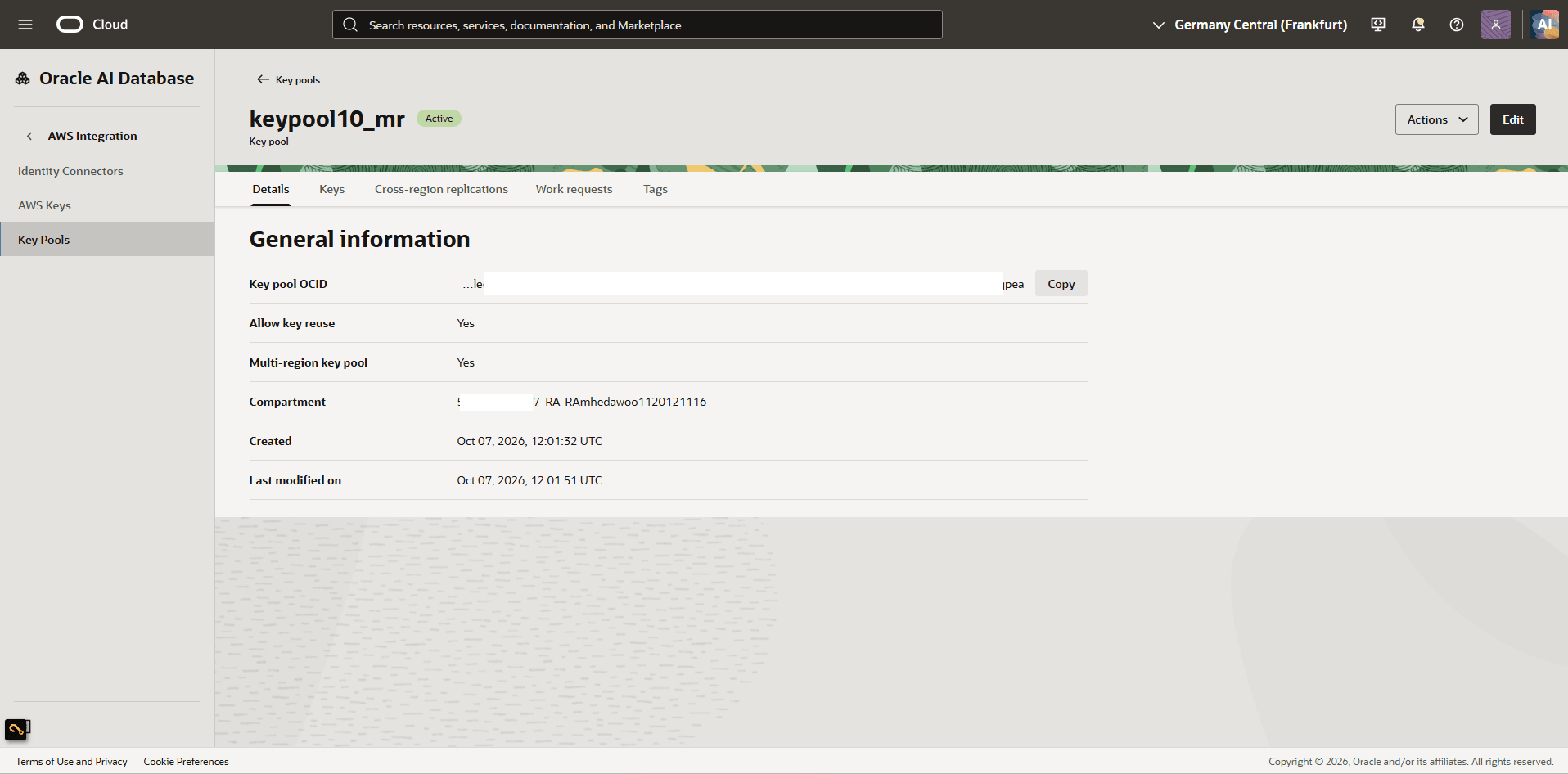
After the pool is created, return to Key Pools and select the key pool to view details such as State, Allow key reuse, Multi-region key pool, and Created date.
Discover and Register Existing AWS KMS Key(s)
- In the OCI Console, navigate to Oracle AI Database and then select Database Multicloud Integrations.
- In the left menu, select AWS Integration and then select Key Pools.
- Select the key pool you created previously.
-
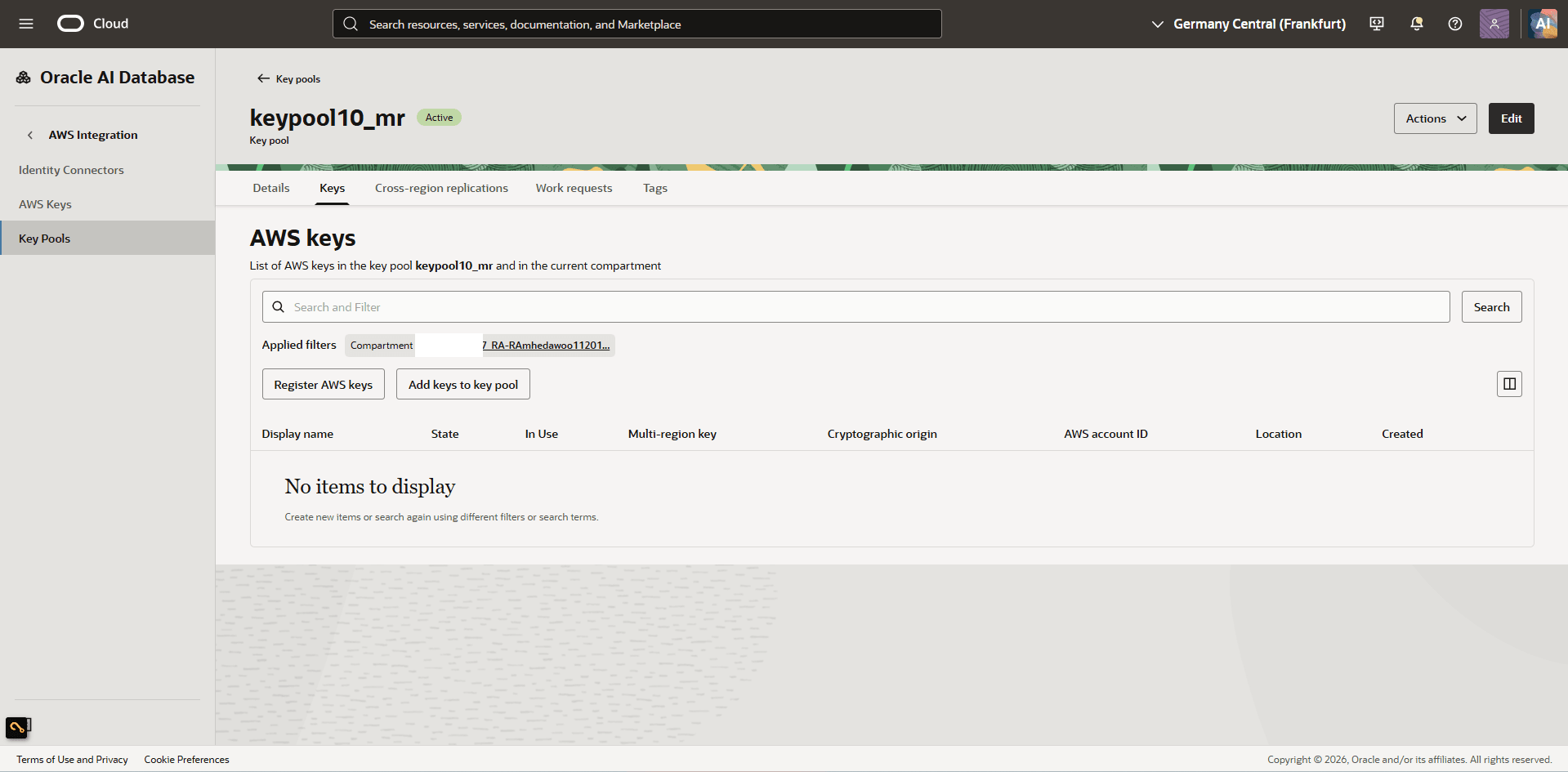
Select the Keys tab. If you have not registered your AWS keys, select Register AWS keys.
 Note
Note
Note:
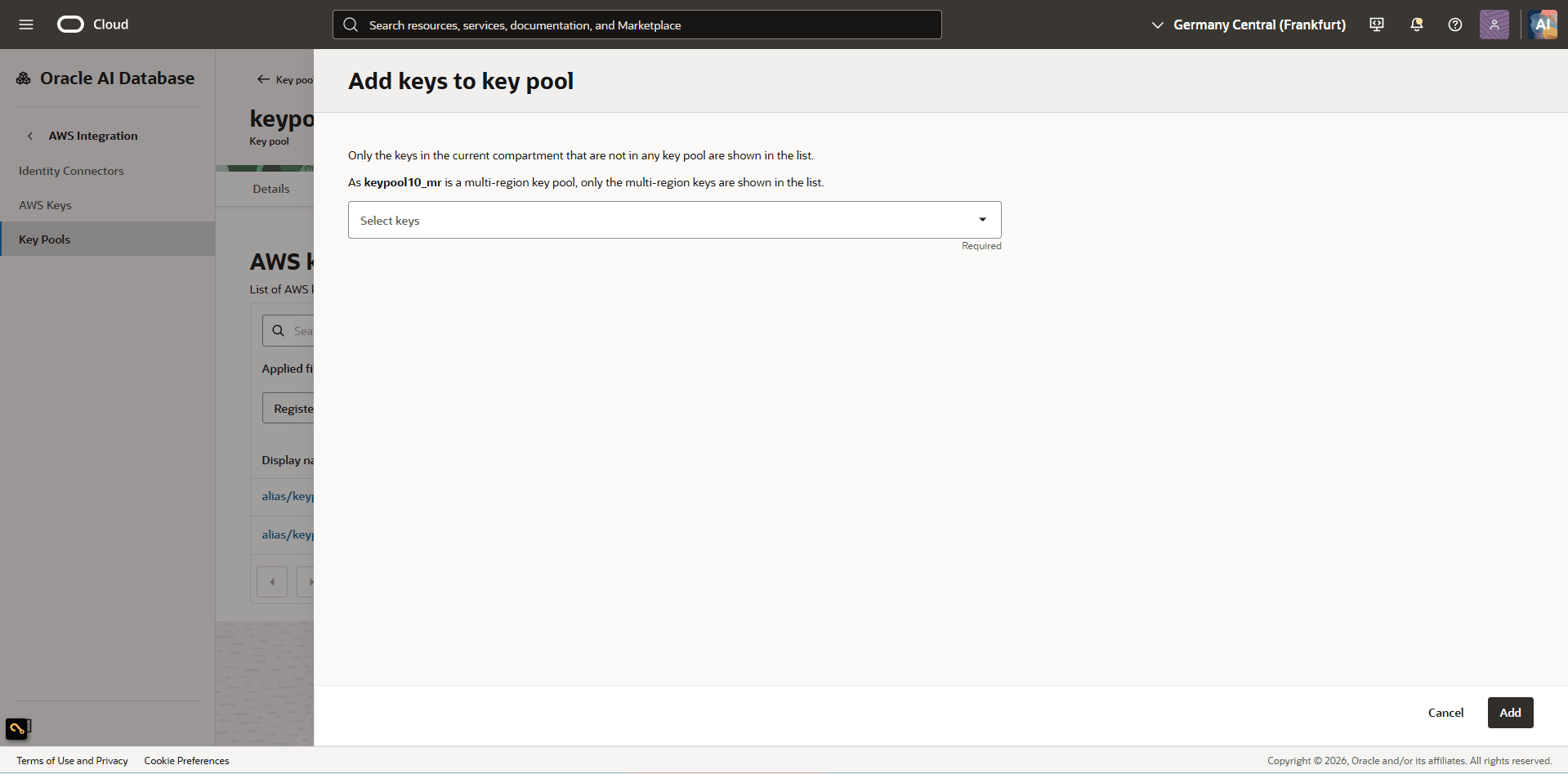
If you registered your AWS keys before the key pool feature became generally available, add them to an existing key pool:
- Select Add keys to key pool.
- Select the previously registered key from the dropdown list.
- Select Add.
-
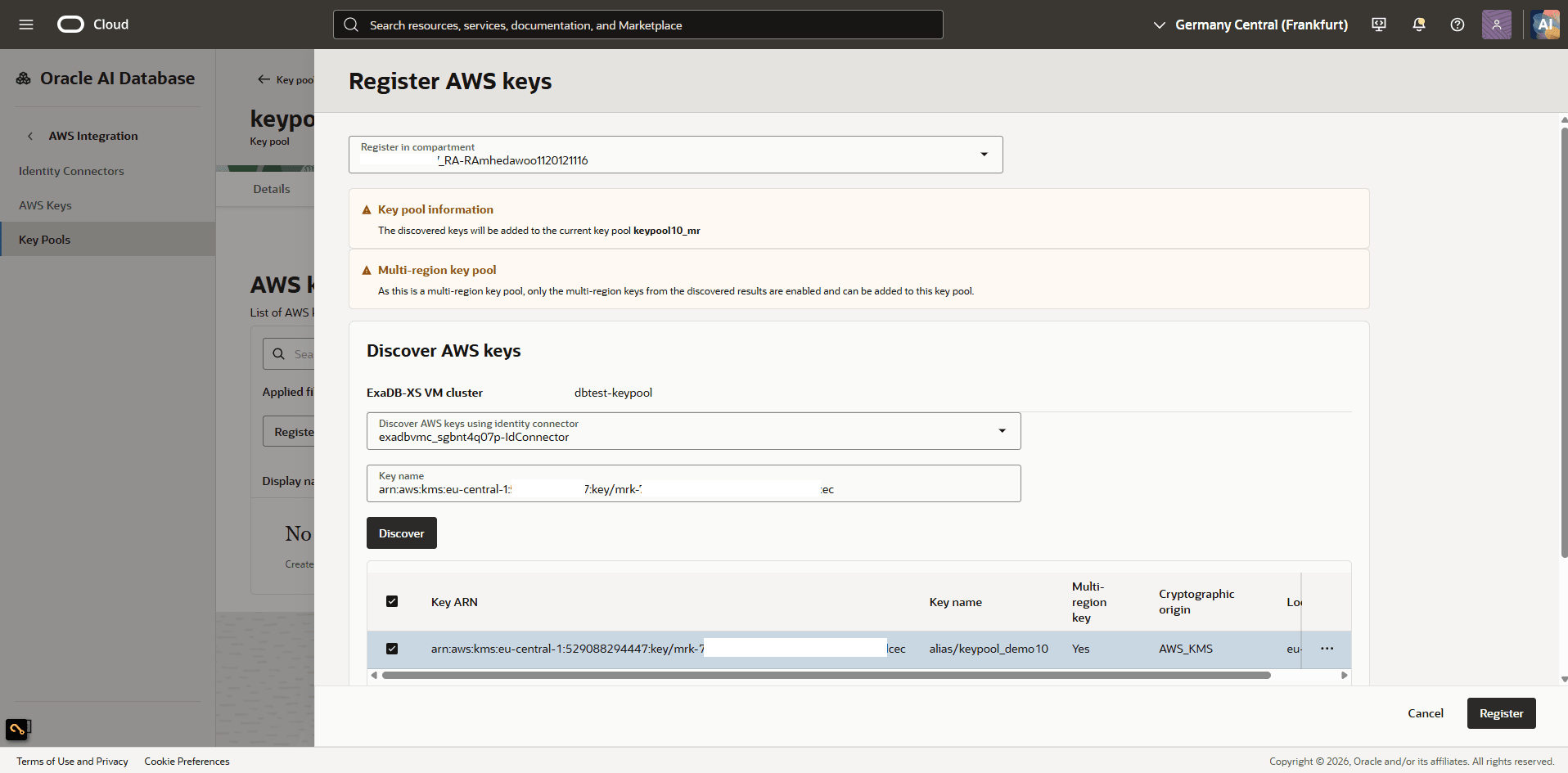
On the Register AWS keys page, complete the following steps:
Note
Note:
-
The discovered keys will be added to the current key pool.
-
Key pool types must match their assigned keys. If you select a multi-region key pool, only discovered multi-region keys will be available to add. Likewise, only single-region keys can be added to a single-region key pool.
- Select the compartment in which to register the AWS key.
- From Discover AWS keys using identity connector, select your identity connector.
- Enter the AWS key ARN in the Key name field.
-
Select Discover, then select the key you want to register.
- Select the key that you want to register.
- Expand the Advanced options section. If you want to add a tag your resources, select the Add tag button. This is an optional step.
-
Review your information and then select Register.
-
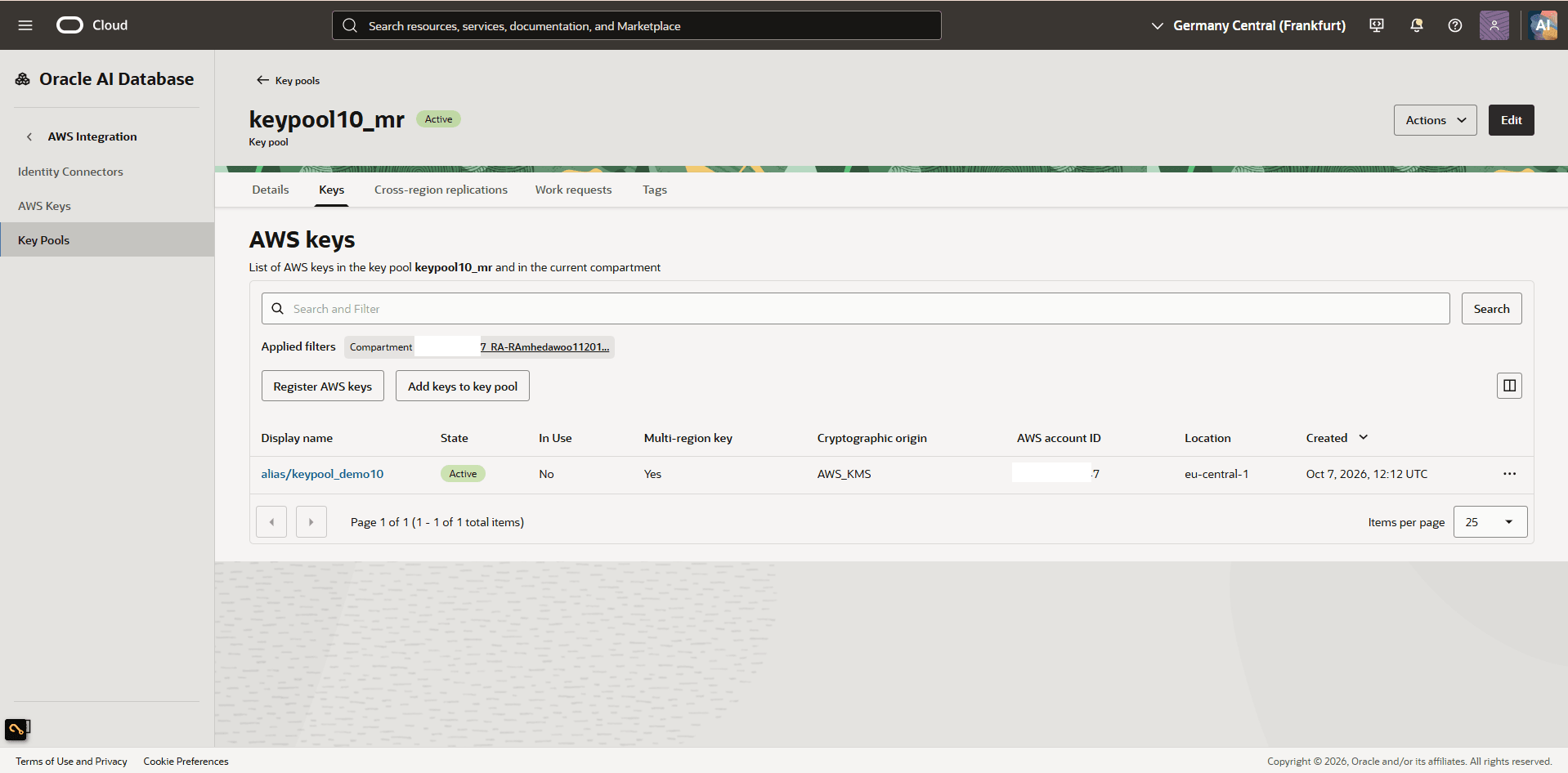
Navigate back to Keys tab to view the details of your AWS key in the key pool.
-
Enable Cross-region Replication for a Key Pool
Note
Note: Cross-region replication is supported only for multi-region key pools.- In the OCI Console, navigate to Oracle AI Database and then select Database Multicloud Integrations.
- In the left menu, select AWS Integration and then select Key Pools.
- Select the key pool for which you want to enable cross-region replication.
-
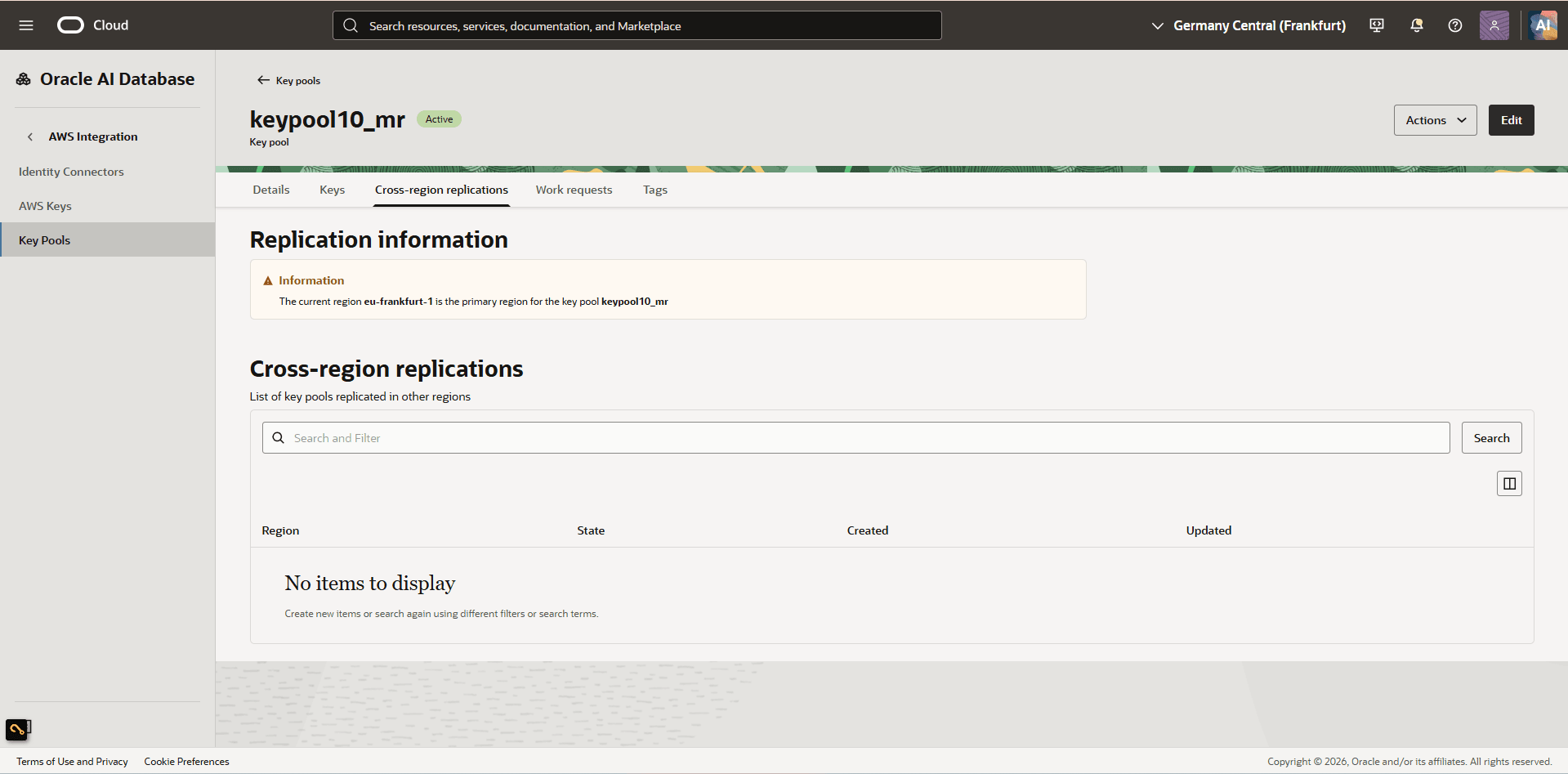
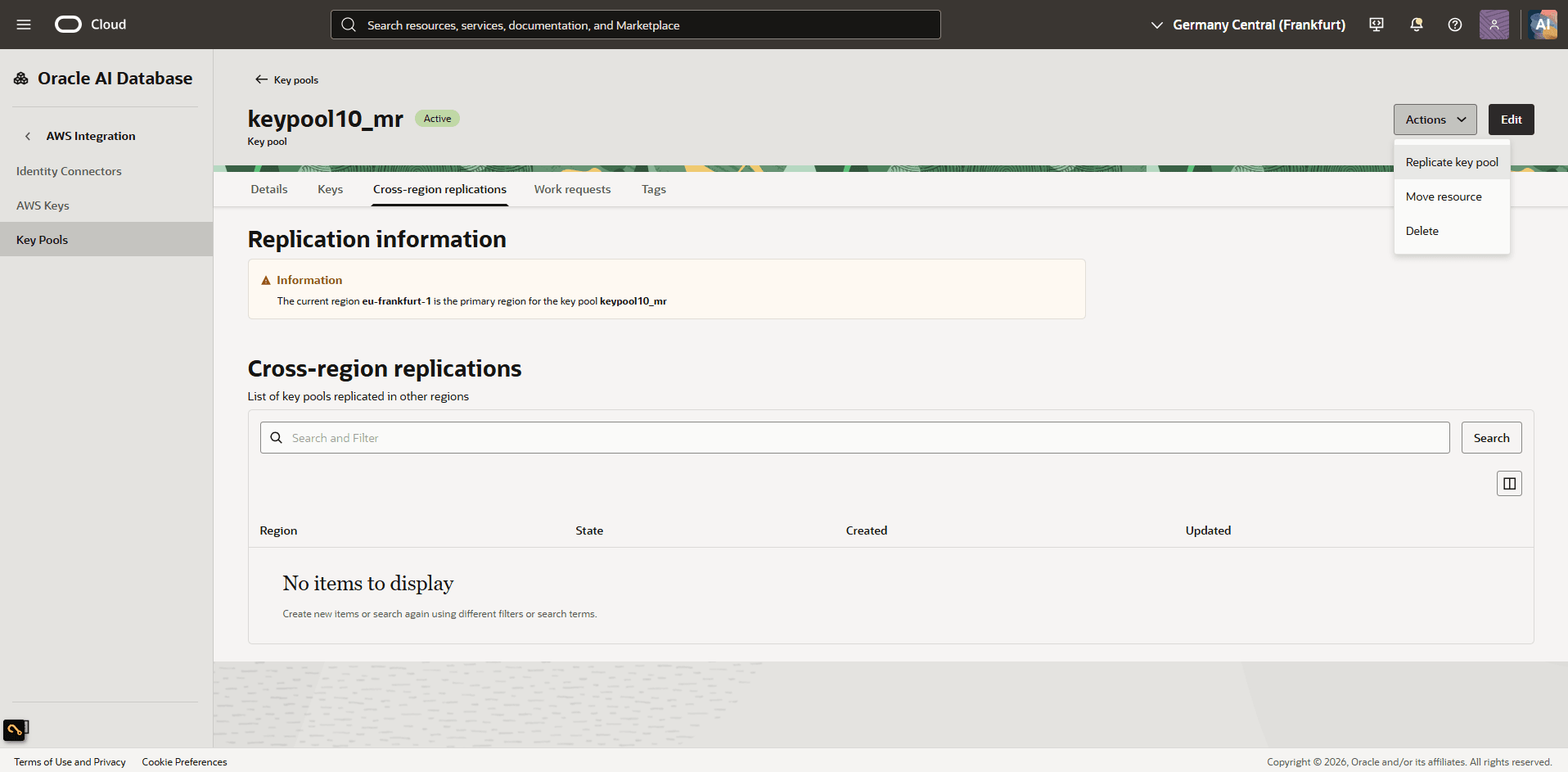
Select the Cross-region replications tab.
-
Select Actions > Replicate key pool.
-
On the Replicate key pool page, select the destination region for the key pool and its keys.
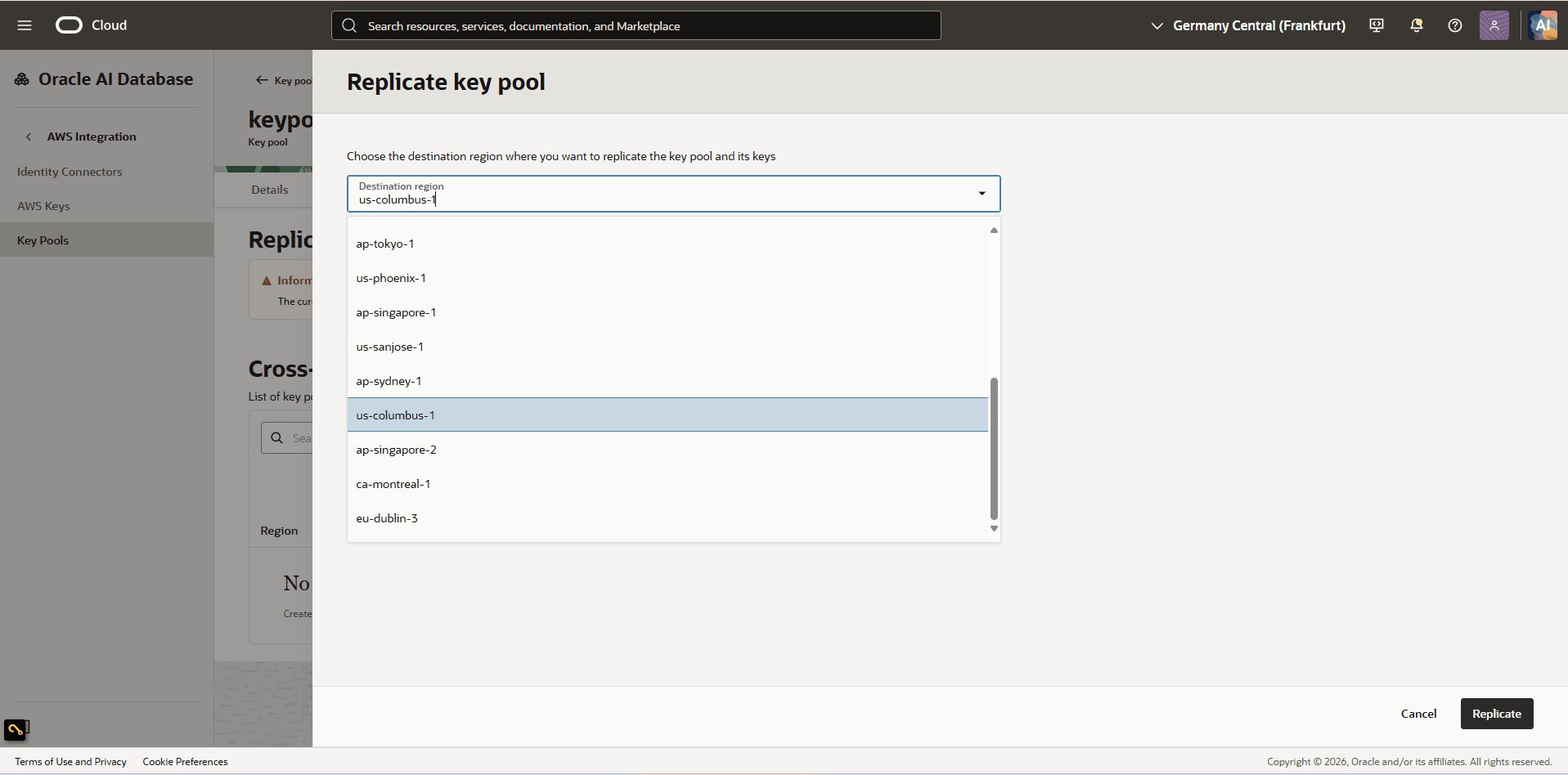
- Select Replicate.
-
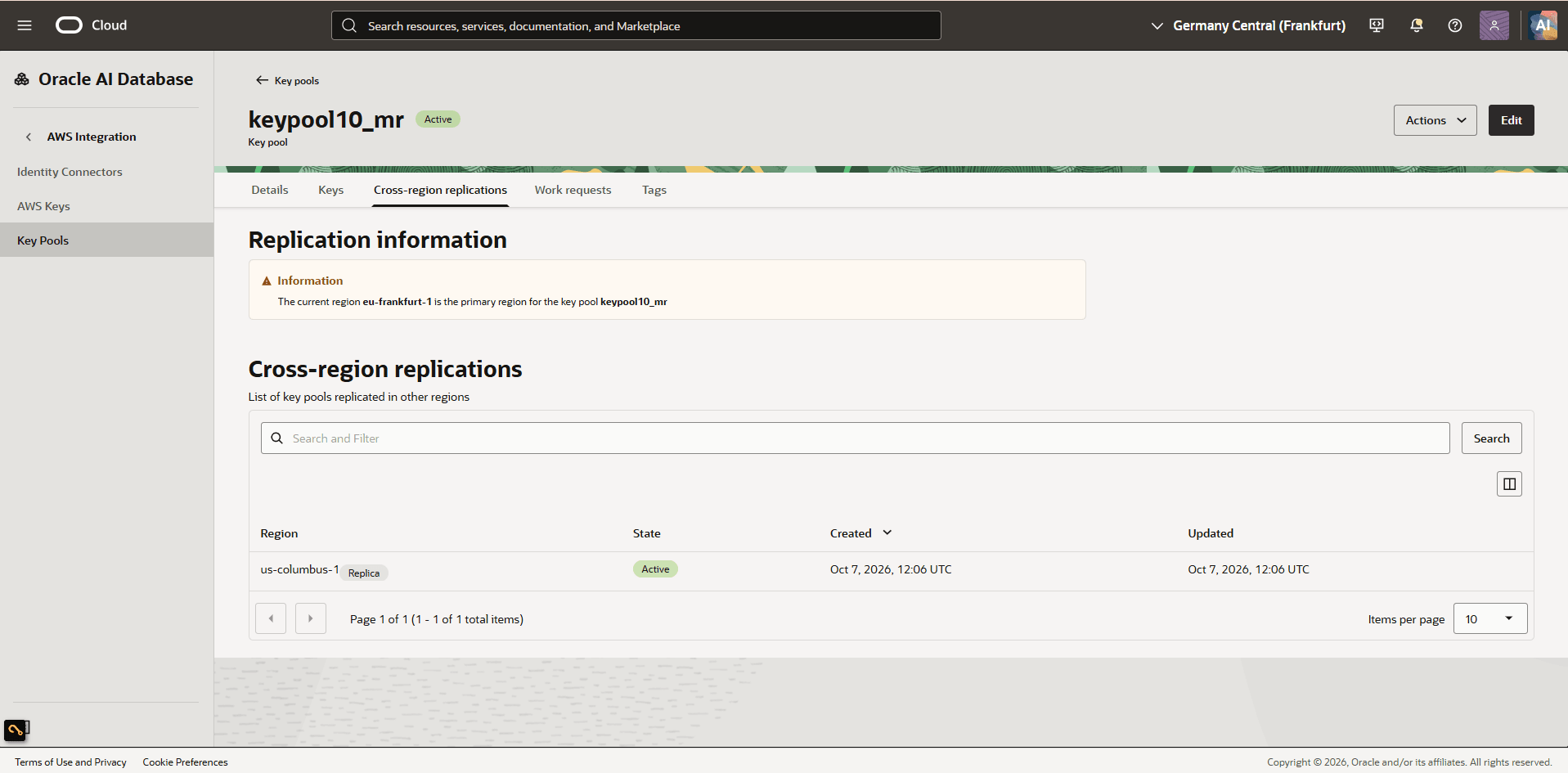
On the Cross-region replications tab, view the regions to which the key pool has been replicated.
Note
Note: If the key pool already contains registered AWS keys, enabling cross-region replication automatically replicates those keys to the destination region. Otherwise, replicate the AWS keys to the target region manually.Enable Cross-region Replication for an AWS Key
Note
Note: Cross-region replication applies automatically only to AWS keys that are in the key pool when the feature is enabled. If you enable replication before adding AWS keys, or add keys later, replicate those keys to the destination region manually.- In the OCI Console, navigate to Oracle AI Database and then Database Multicloud Integrations.
- In the left menu, select AWS Integration and then select AWS Keys.
- Select the AWS key for which you want to enable cross-region replication.
-
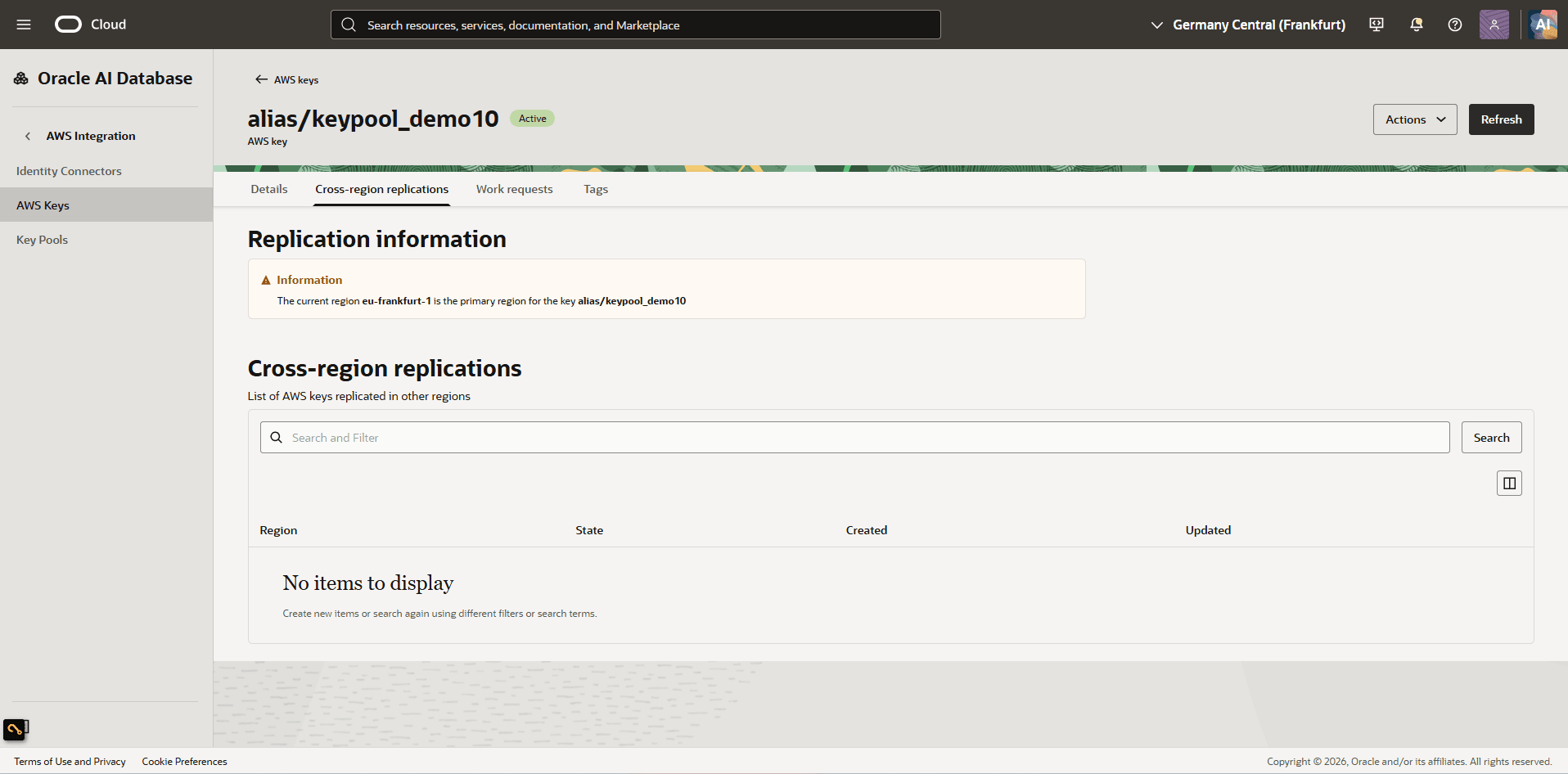
Select the Cross-region replications tab.
-
Select Actions and then select Replicate AWS Key.
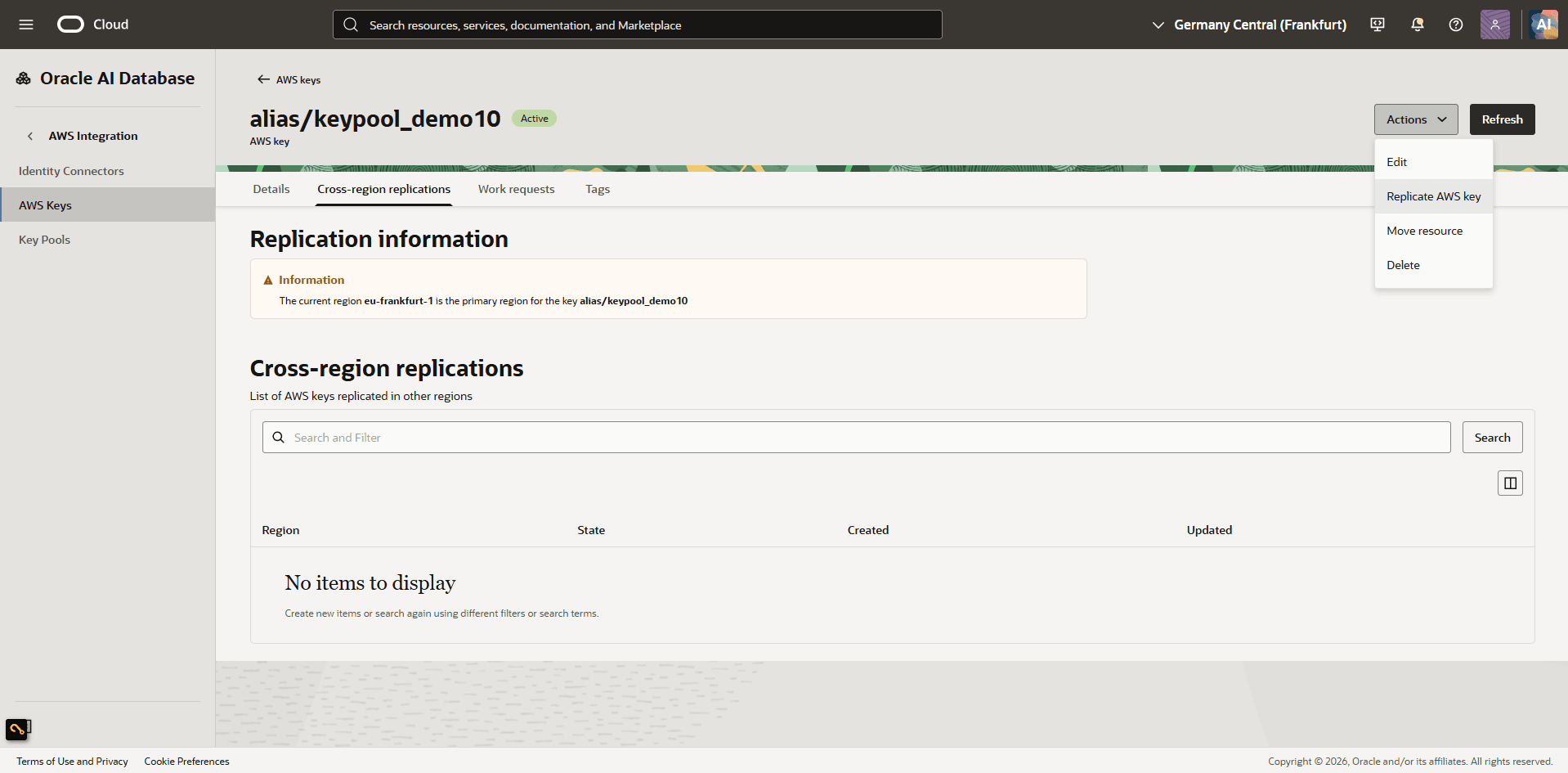
-
On the Replicate AWS Key page, select the destination region where you want to replicate the key pool and its keys.
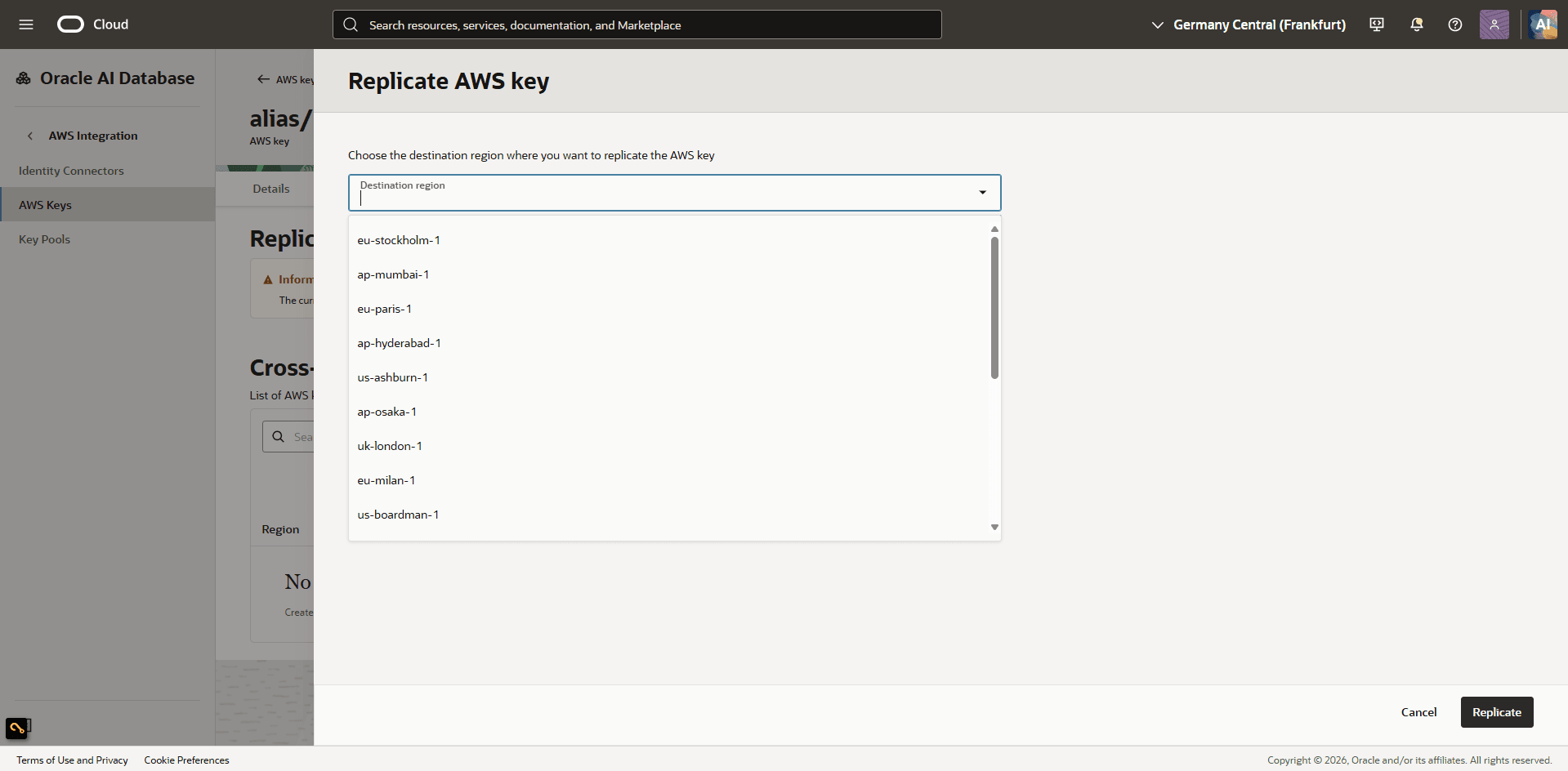
- Select Replicate.
-
On the Cross-region replications tab, view the regions to which the AWS key has been replicated.
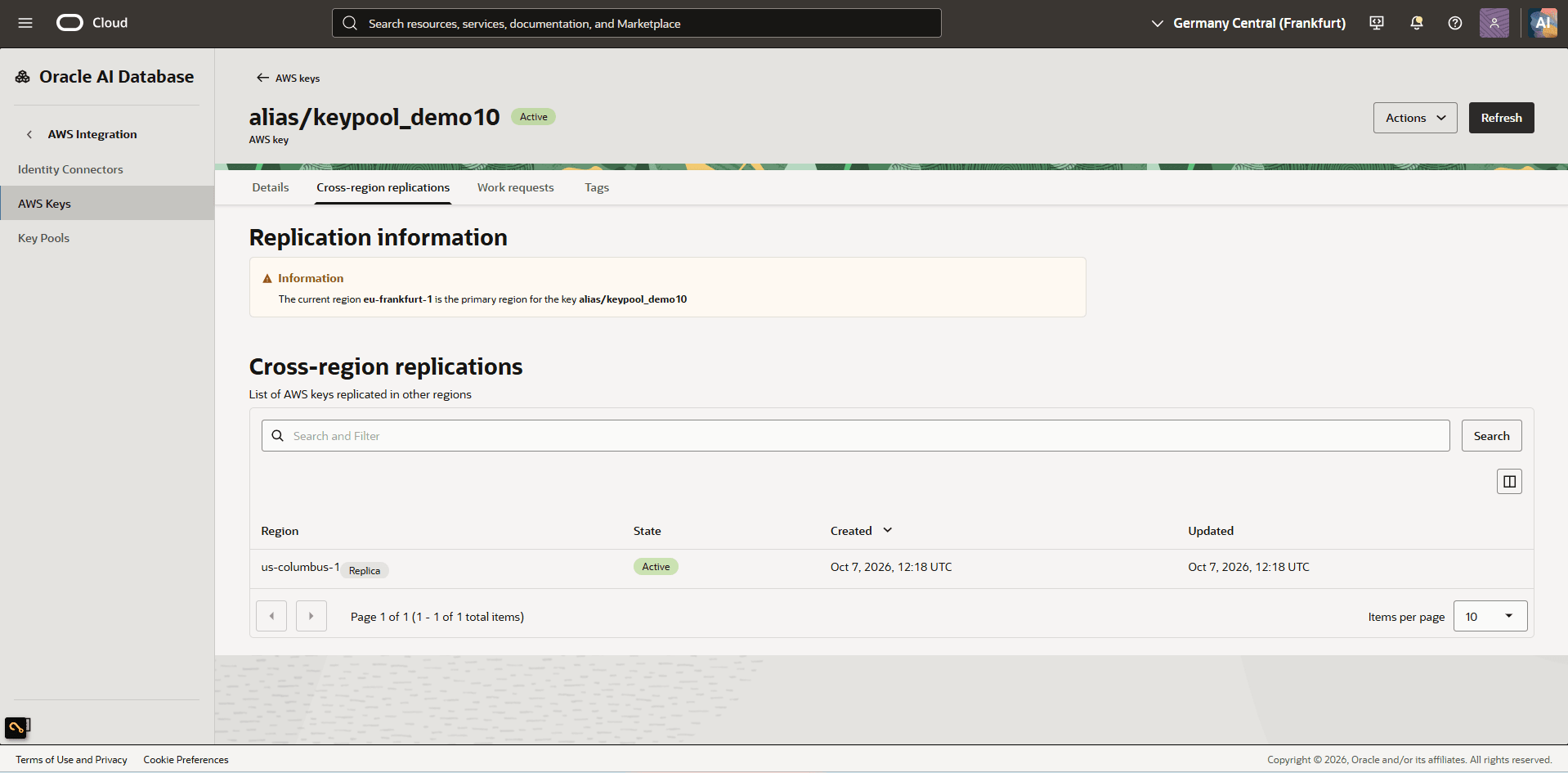
Add or remove an AWS key from a key pool
- In the OCI Console, go to Oracle AI Database > Database Multicloud Integrations.
- In the left menu, select AWS Integration > Key Pools.
- Select the key pool that you are using.
- To add a key in your key pool, complete the following steps:
- Select the Keys tab, then select Add keys to key pool.
-
On the Add keys to key pool page, select a key from the dropdown list.
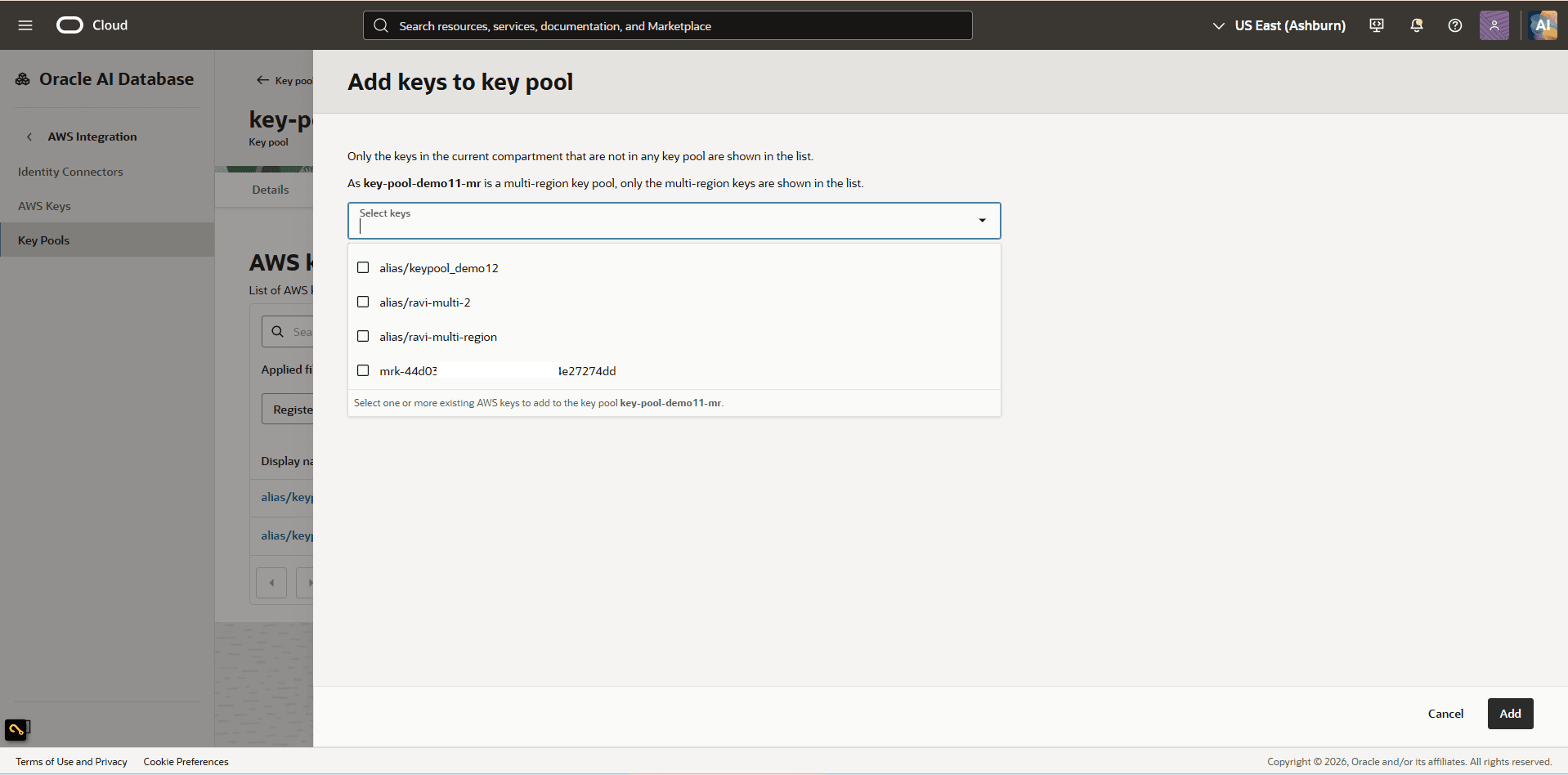 Note
Note
Note:
- The list shows only keys in the current compartment that are not already in a key pool.
- A single-region key pool shows only single-region keys.
- A multi-region key pool shows only multi-region keys.
- Select Save.
- To remove a key from your key pool, complete the following steps:
- Select the Keys tab.
-
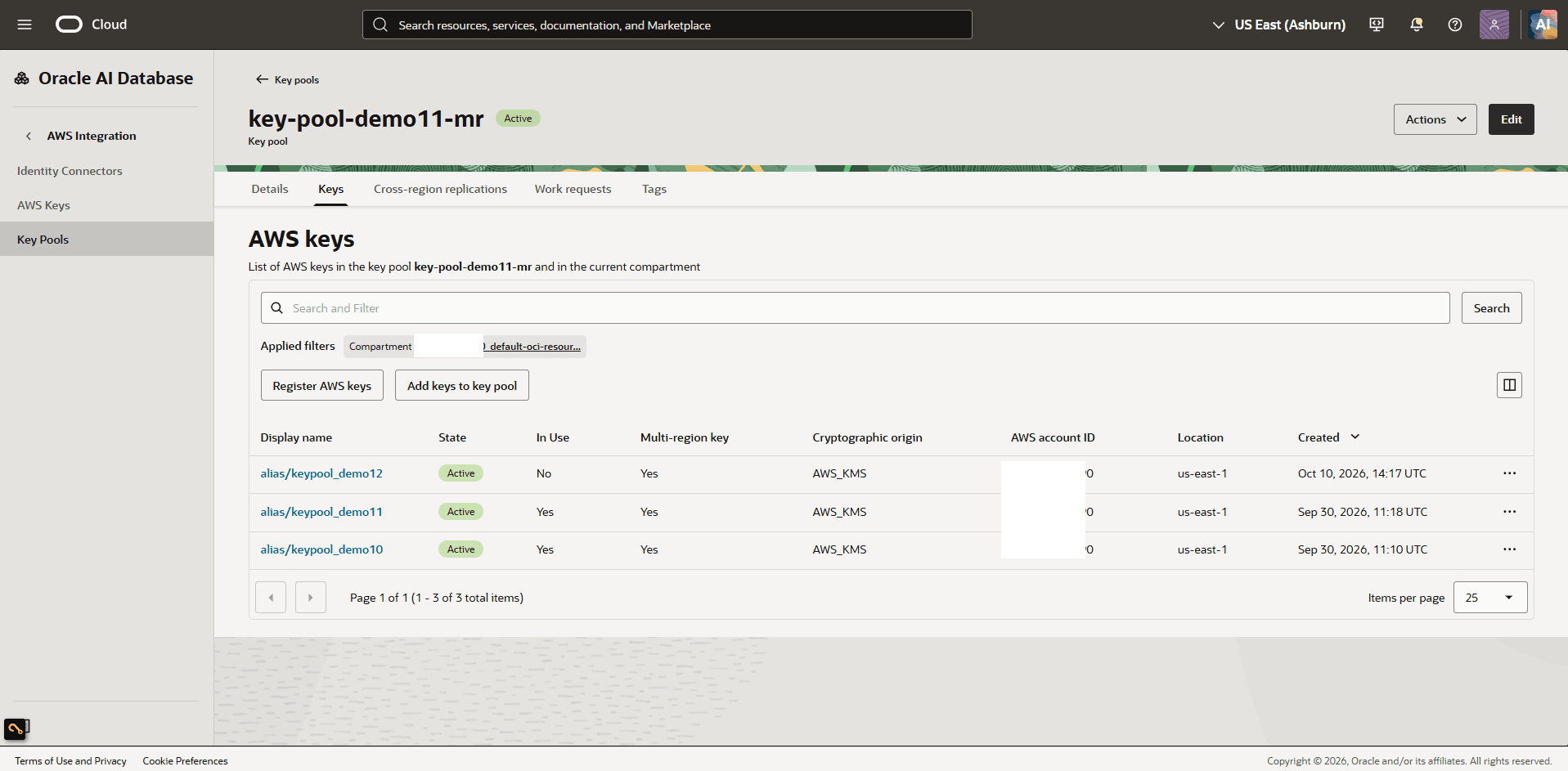
Select the Display name link for the AWS key you want to remove.
-
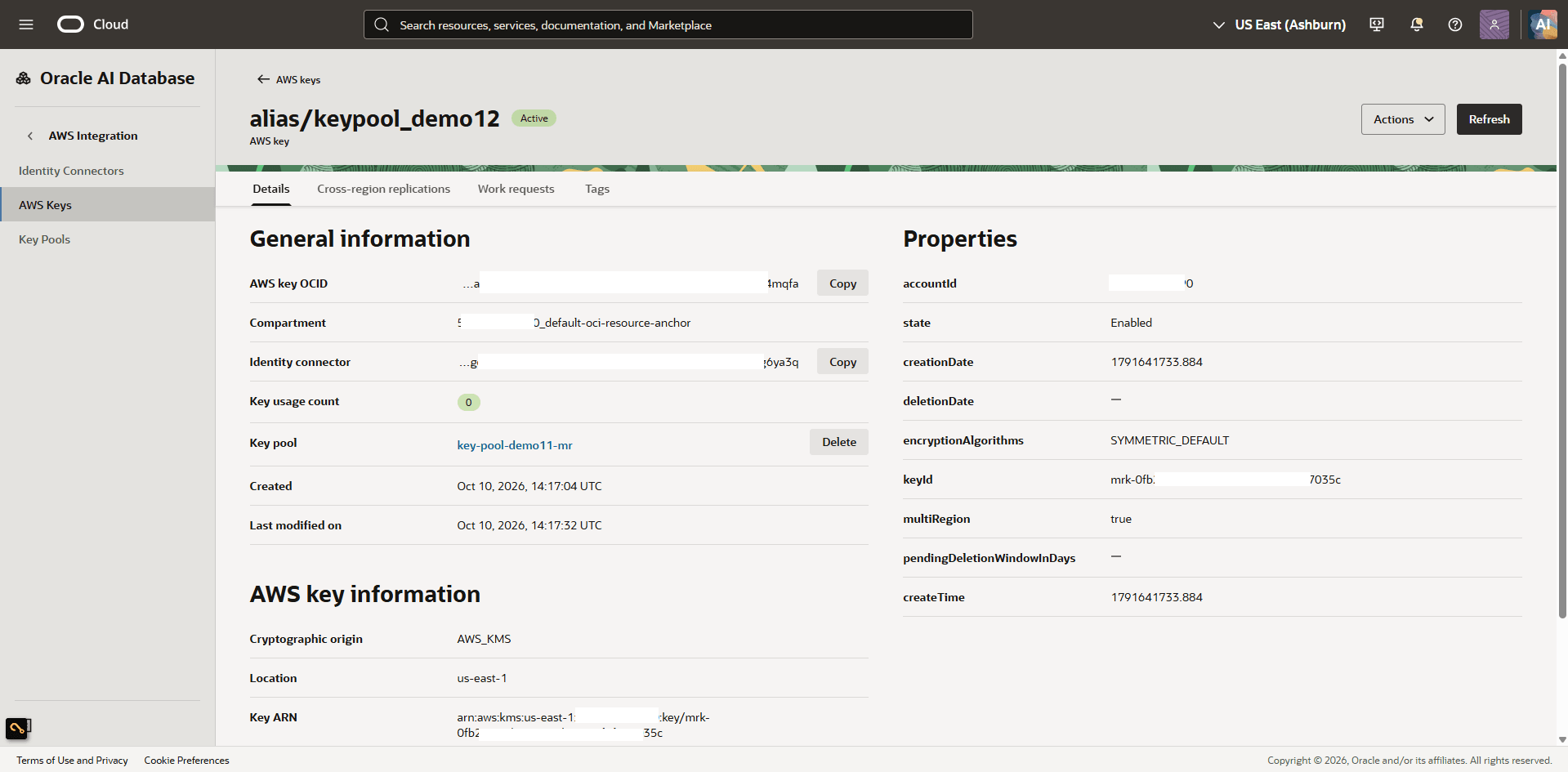
On the Details page, scroll to the Key pool field and select Delete.
-
Enter
DELETEin the field and select Delete to remove the key from the key pool.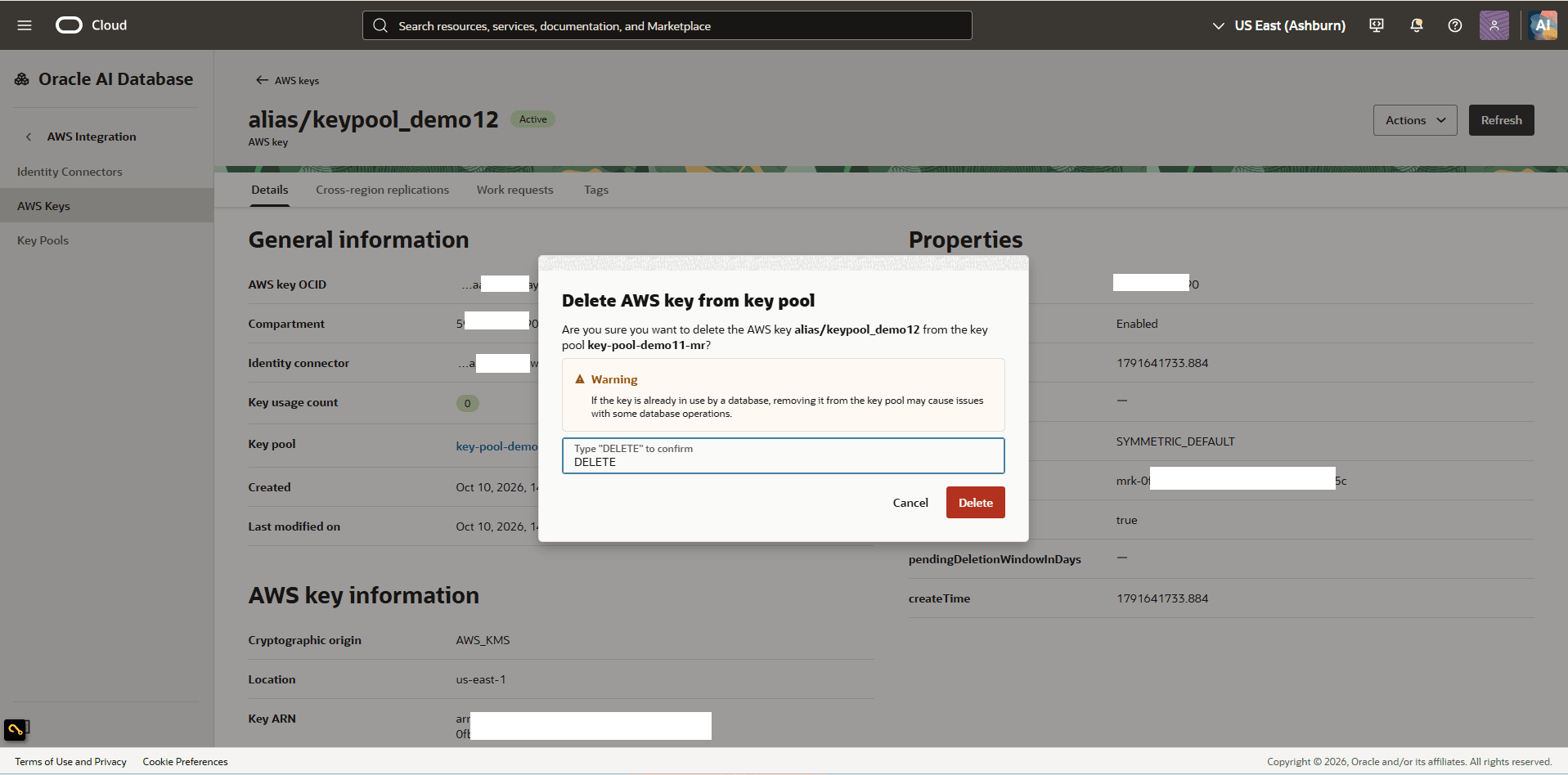
View Key Usage Count
- In the OCI Console, navigate to Oracle AI Database and then select Database Multicloud Integrations.
- In the left menu, select AWS Integration and then select Key Pools.
- Select the key pool you want to check.
- Select the Keys tab, then select the key you want to validate.
-
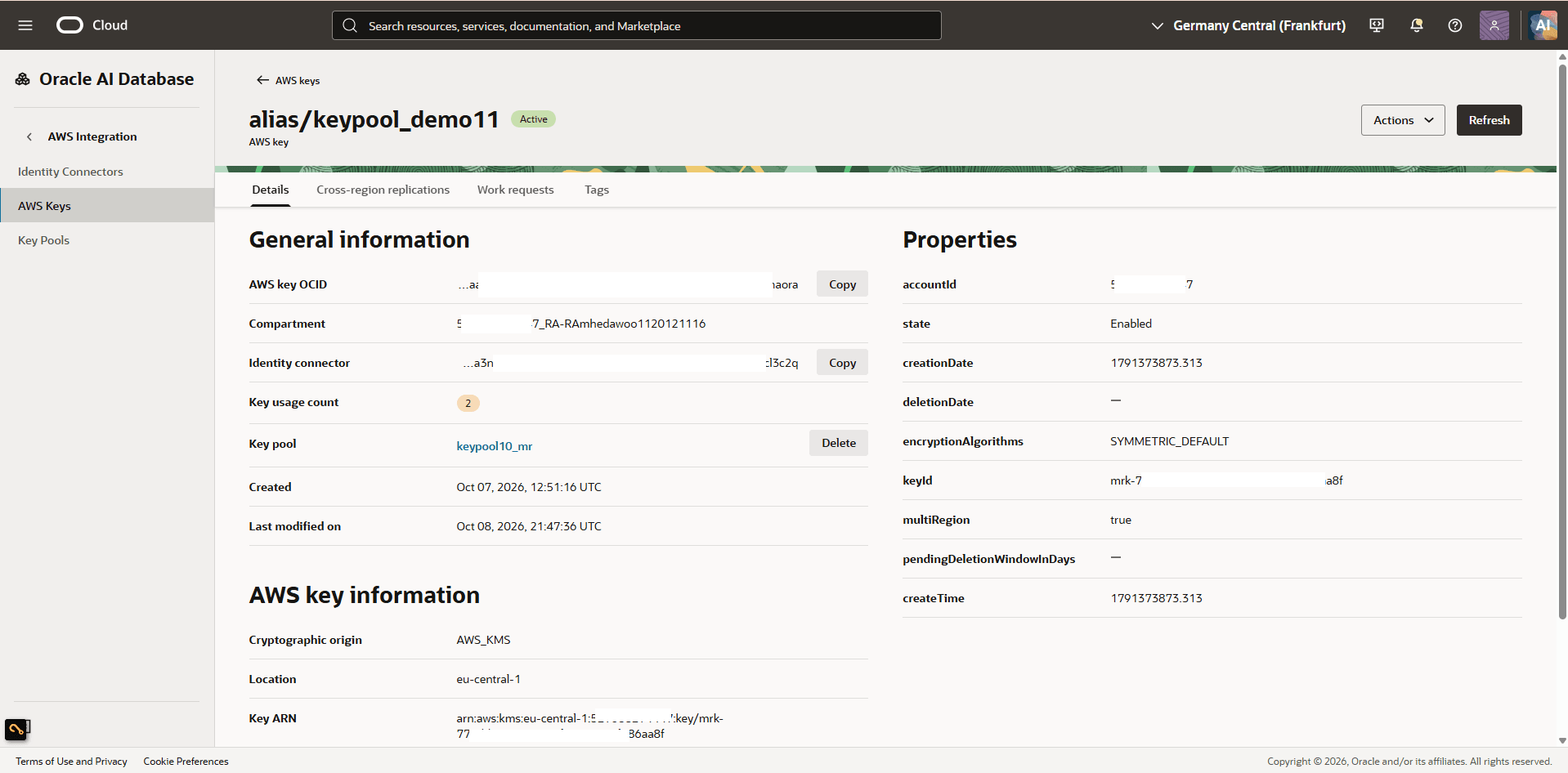
On the Details page, scroll to Key usage count. This field shows the number of times the AWS key is in use.
-
Note
Note:
The Key usage count field shows the number of active database resources currently using the AWS key. This count reflects the key usage and does not indicate the number of available keys in the Key Pool.
The system displays the Available Keys Below Threshold warning when key reuse is disabled and fewer than 25% of the keys in the key pool are available. If the warning appears, add more keys to the key pool or enable key reuse in the key pool policy to help ensure keys remain available for database operations.
-