API Gateway QuickStart Guide
Find out how to get started quickly with API Gateway.
A. Set up your tenancy
If suitable users and groups to create and access API Gateway and network resources don't exist already:
- Sign in to the Console as a tenancy administrator.
- Open the navigation menu and select Identity & Security. Under Identity, select Domains.
-
Select a domain, and on the User management tab, create a new group by selecting Create group in the Groups section.
-
On the User management tab, create a new user by selecting Create in the Users section.
-
On the User management tab, add a user to a group by selecting the name of the group in the Groups section, selecting the Users tab, and then selecting Assign user to group.
See detailed instructions for more information.
If a suitable compartment in which to create API Gateway resources and network resources doesn't exist already:
- Sign in to the Console as a tenancy administrator.
-
Select Create Compartment.
See detailed instructions for more information.
To ensure high availability, you can only create API gateways in regional subnets (not AD-specific subnets). If a suitable VCN with a public regional subnet in which to create network resources doesn't exist already:
- Sign in to the Console as a tenancy administrator.
- Open the navigation menu , select Networking, and then select Virtual cloud networks.
- Select Start VCN Wizard from the Actions menu to create a new VCN.
-
In the Start VCN Wizard dialog box, select Create VCN with Internet Connectivity and select Start VCN Wizard.
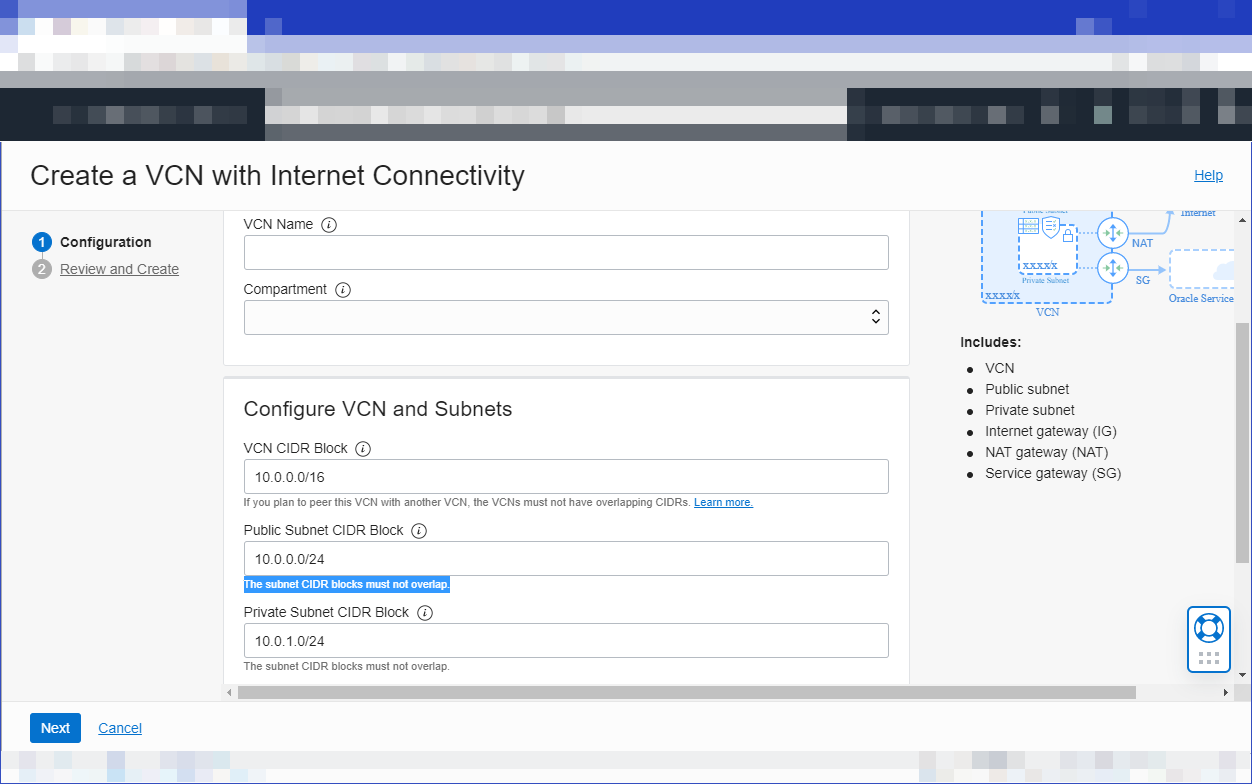
As well as the VCN, the workflow creates a public regional subnet and a private regional subnet, along with an internet gateway, a NAT gateway, and a service gateway.
-
Enter a name for the new VCN, and specify CIDR blocks for the VCN, the public regional subnet (must provide a minimum of 32 free IP addresses), and the private regional subnet.
-
Select Next to review the details you entered for the new VCN, and select Create to create it. When the VCN has been created, select View VCN to see the new VCN and the subnets that have been created.
The API Gateway communicates on port 443, which is not open by default. You have to add a new stateful ingress rule for the public regional subnet to allow traffic on port 443.
- On the virtual cloud network details page, select the Subnets tab. Select the name of the public regional subnet, then select the Security tab. Select the name of the default security list, then the Security rules tab, and then select Add Ingress Rules. Specify:
- Source Type: CIDR
- Source CIDR: 0.0.0.0/0
- IP Protocol: TCP
- Source Port Range: All
- Destination Port Range: 443
- Select Add Ingress Rules to add the new rule to the default security list.
See detailed instructions for more information.
If one or more API developers is not a tenancy administrator:
- Sign in to the Console as a tenancy administrator.
-
Create policies to give API developers access:
- Create a policy with one policy statement to enable API developers to access API Gateway-related resources. Select Create Policy, specify a name and description for the new policy, and select the compartment that will own API Gateway-related resources. Use the Policy Builder Manual Editor to enter the following policy statement, and then select Create:
Allow group <group-name> to manage api-gateway-family in compartment <compartment-name> - Create a policy with one policy statement to enable API developers to access network resources. Select Create Policy, specify a name and description for the new policy, and select the compartment that owns the network resources to use with API Gateway. Use the Policy Builder Manual Editor to enter the following policy statement, and then select Create:
Allow group <group-name> to manage virtual-network-family in compartment <compartment-name>
Note: The above policies are sufficient to enable you to create an API deployment with an HTTP back end, as suggested in this QuickStart Guide. You can enter additional policies (as described in the documentation) to enable API developers to create API deployments with OCI Functions functions as back ends, and to enable API gateways to authenticate with a cache server to retrieve cached response data.
- Create a policy with one policy statement to enable API developers to access API Gateway-related resources. Select Create Policy, specify a name and description for the new policy, and select the compartment that will own API Gateway-related resources. Use the Policy Builder Manual Editor to enter the following policy statement, and then select Create:
See detailed instructions for more information.
B. Create, deploy, and call your API
- Sign in to the Console as an API Gateway developer, open the navigation menu and select Developer Services. Under API Management, select Gateways.
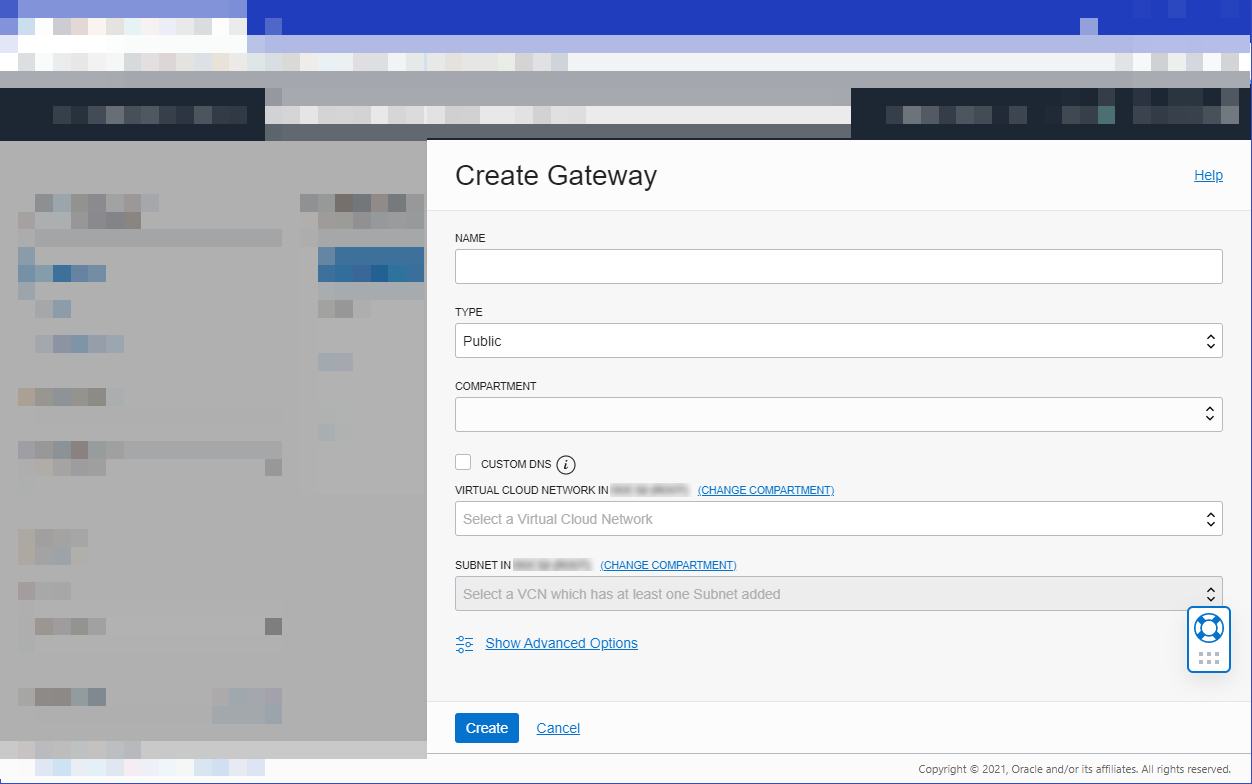
- Select Create Gateway and specify:
- a name for the new gateway, such as
acme-api-gateway - the name of the compartment in which to create API Gateway resources
- the type of the new gateway as Public
- the name of the VCN to use with API Gateway
- the name of the public regional subnet in the VCN
- a name for the new gateway, such as
- Select Create.
When the new API gateway has been created, it is shown as Active in the list on the Gateways page.
See detailed instructions for more information.
- On the Gateways list page in the Console, select the name of the API gateway you created earlier.
- On the Deployments tab, select Create deployment.
-
In the Basic information page, specify:
- a name for the new API deployment, such as
acme-api-deployment - a path prefix to add to the path of every route contained in the API deployment, such as
/v1 - the compartment in which to create the new API deployment
- a name for the new API deployment, such as
-
Select Next to display the Authentication page. Then select Next to display the Routes page, select Add route, and specify:
- a path, such as
/hello - a method accepted by the back-end service, such as
GET - the type of the back-end service, and associated details. For convenience, add a single backend, specify the type as
HTTPand enter a public API as the back end's url (such ashttps://api.weather.gov).
- a path, such as
-
Select Create to create the route. Select Next to review the details you entered for the new API deployment, and select Create to create it.
When the new API deployment has been created, it is shown as Active in the list of API deployments.
- When the API deployment is active, go on to the next task.
See detailed instructions for more information.
-
On the Deployments tab of the API gateway details page, select the new API deployment you just created, and select Copy beside the endpoint of the new API deployment you just created to copy the endpoint.
-
Open a terminal window and call the API by entering:
curl -k -X GET <deployment-endpoint>where
<deployment-endpoint>is the endpoint that you copied in the previous step. For example,https://lak...sjd.apigateway.us-phoenix-1.oci.customer-oci.com/v1/hello
Congratulations! You've just created your first API gateway and API deployment, and called your first API using the API Gateway service!
See detailed instructions for more information.
Now that you've created, deployed, and called an API function, learn how to:
- managing API gateways and API deployments (see Listing API Gateways, Updating an API Gateway, Deleting an API Gateway)
- limiting the number of requests (see Limiting the Number of Requests to API Gateway Back Ends)
- adding CORS support (see Adding CORS support to API Deployments)
- adding stock responses (see Adding Stock Responses as an API Gateway Back End)
- confirming API caller identity and permissions (see Adding Authentication and Authorization to API Deployments)
You're done!